Troubleshooting the n8n node
Fix Social Fetch errors in n8n: install problems, API key and credit errors, busy or failed lookups, empty results, and updating the node.
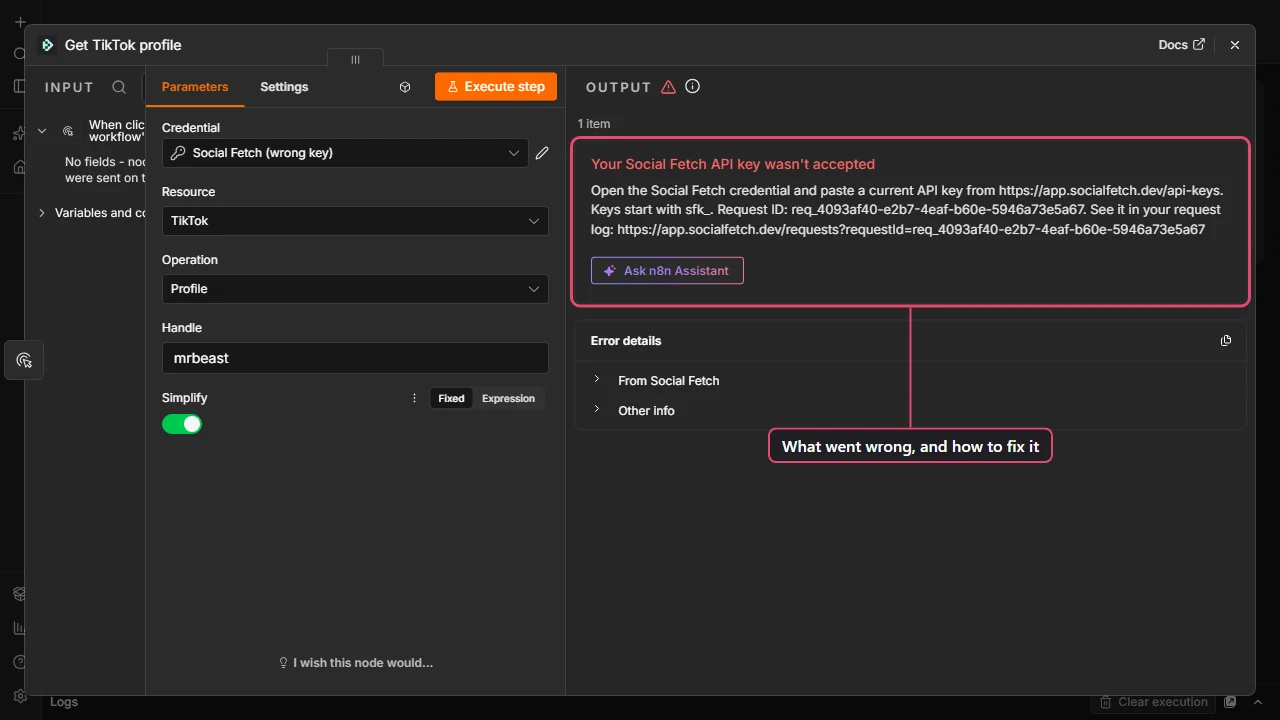
Start with the red error message on the node. The Social Fetch node says what went wrong and what to do next, and ends with a Request ID and a link to that request in your request log, where you can see exactly what was sent and what came back.
Error messages
Your Social Fetch API key wasn't accepted
The key in the Social Fetch credential is wrong, was deleted, or has expired.
- Open API Keys and copy a current key (create a new one if you need to). Keys start with
sfk_. - In n8n, open the Social Fetch node, click the pencil next to Credential, paste the key into API Key and click Save.
If you have several Social Fetch credentials in n8n, check that the node uses the one you just fixed.
Not enough Social Fetch credits for this request
The request was refused and nothing was charged. There are two causes, and the message in the error details says which:
- Your balance is empty. The details include a link to buy credits, a link to a bigger plan if you're on one, and, if you've never bought credits, a link to add a card for free bonus credits. You can also go to Billing directly. To stop this happening on a schedule, turn on auto-refill in Billing, or see Credits and billing for plans and packs.
- This API key reached its monthly spend limit. Keys can have their own limit, set in API Keys. Raise the limit or use another key. Buying credits doesn't help here. See Teams: API keys.
Once that's sorted, run the workflow again.
This API key isn't allowed to make this request
The key works, but it can't do this. Usually the person who created it left the workspace, or their role doesn't allow it. Create a new key in API Keys and update the credential, or ask the workspace owner. See Teams and workspaces.
Social Fetch couldn't use the inputs on this node
One of the fields isn't in a form Social Fetch accepts: a handle with a typo, a full URL where a handle is expected, or an empty field the operation needs. The error details name the field. Check the example in the field's placeholder, and the API reference link in the details shows every input with an example.
Common causes:
- A handle with extra characters. Enter
nasa, not@nasaorhttps://www.instagram.com/nasa/, unless the field asks for a URL. - An expression that returned nothing. If the field uses an expression like
{{ $json.handle }}, open the node's input panel and check the previous node really has ahandlefield. Field names are case sensitive. - Two ways to identify something. Some operations take a handle or an ID. The main field is on the node; if you'd rather use the ID, leave the main field empty and add the ID under Additional Fields.
The … field is empty
A field the operation needs is empty, so the node stopped before sending anything (nothing was charged). This usually happens when the field uses an expression and the previous node didn't have that value for one of the items. Open the node's input panel, check the field name in the expression, and check every item has it.
Social Fetch is busy right now
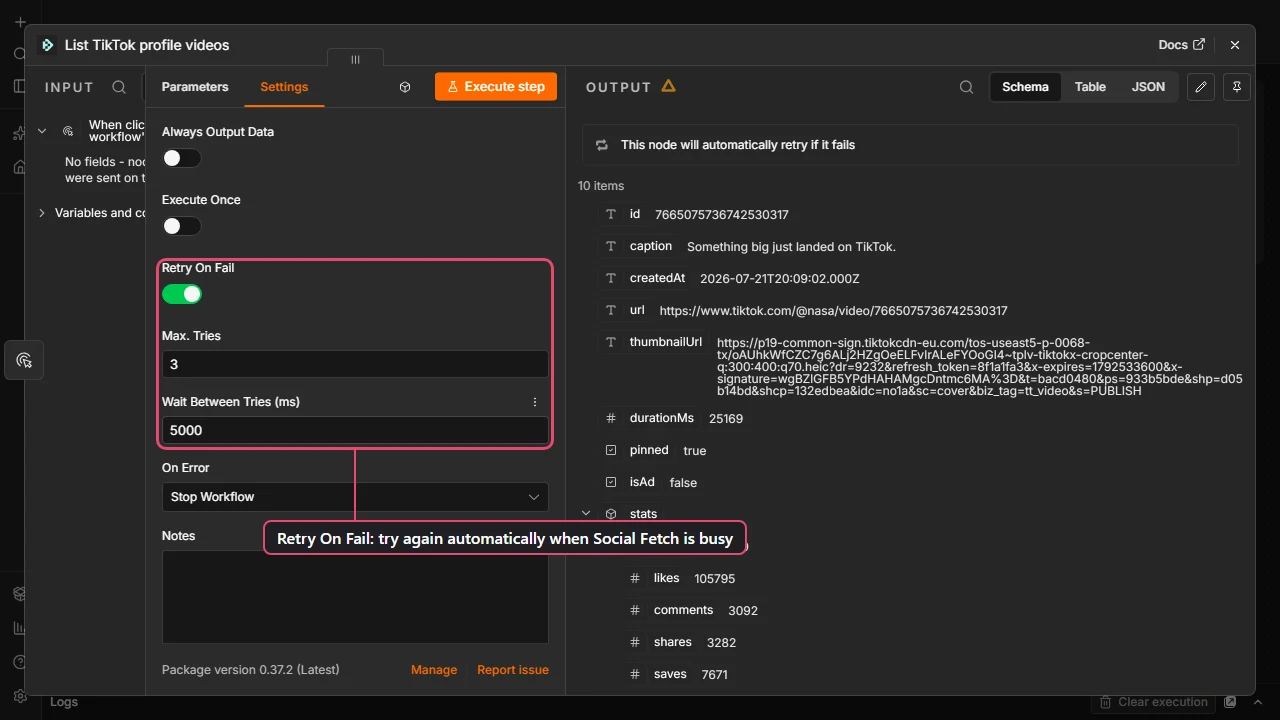
Social Fetch couldn't finish the request right now. You weren't charged, and trying again a little later usually works. The message says how long to wait when Social Fetch knows.
For workflows that run on their own, let n8n retry for you: open the node, go to Settings, turn on Retry On Fail, and set Wait Between Tries to 5000 ms or more.
Social Fetch couldn't get this data right now
The platform didn't return the data on this attempt. You weren't charged. Retry in a minute, or turn on Retry On Fail as above. If the same input keeps failing, send the request ID to support.
Too many account checks in a short time
This only happens with Account → Balance and Whoami (and n8n's credential test), which are free and have a rate limit. Lookups have no rate limit. If a workflow checks the balance once per item in a loop, move the check before the loop so it runs once.
Social Fetch had a problem with this request
Something went wrong on our side. Try again. If it keeps happening, contact support with the request ID from the error details.
The run is green but the output looks empty
A green run means Social Fetch answered, not that it found data.
- Nothing came out of the node. With Simplify on, a list with no results produces no items, and nodes after it don't run. That's normal for a creator with no videos or a search with no matches, but it also happens when the account doesn't exist or is private. To see which, open the request in your request log and look at
lookupStatus, or turn Simplify off and run it again. To keep the workflow going when there are no results, open the node's Settings and turn on Always Output Data. lookupStatusisnot_foundorprivate. The account doesn't exist, was renamed, or is private. These lookups are billed like any other, so check spelling before you run a long list.- Fewer results than you expected. Without Return All, list operations return the first page only. See Getting every page.
Is Social Fetch down?
Check status.socialfetch.dev. Then open your request log: every request your workflows sent is there, with its status, the credits it used and the full response. If n8n shows an error but there's no matching request in the log, the request never reached Social Fetch. Check the node's credential and your n8n instance's internet connection.
Credits
Does testing in n8n use credits?
Yes. Execute step, Execute workflow and test events in the editor all send real requests, and successful requests use credits. There's no separate test mode. To build and tweak a workflow without spending credits on every run, run the Social Fetch node once, then pin its output (the pin icon in the output panel). Pinned nodes reuse that data instead of calling Social Fetch again. Unpin it before you publish the workflow.
How do I see what a run cost?
Open the request log: every request shows the credits it used. In n8n, the full response (with Simplify off) has the same number in meta.creditsCharged. To check your balance from n8n, use Resource: Account → Operation: Balance. It's free.
Installing and updating
The node isn't in the nodes panel
- The Install node button is missing. Only the instance owner or an admin can install community nodes. Ask them to install it once; then everyone can use it.
- Self-hosted n8n. Verified community nodes need
N8N_COMMUNITY_PACKAGES_ENABLEDandN8N_VERIFIED_PACKAGES_ENABLED(both on by default). If your admin turned them off, install the package by name instead: Settings → Community nodes → Install, entern8n-nodes-socialfetch, tick the risk box and click Install. This also needsN8N_UNVERIFIED_PACKAGES_ENABLED. - n8n Cloud. The owner can turn verified community nodes on and off in the Cloud Admin Panel.
Update the node
Go to Settings → Community nodes. When a newer version of n8n-nodes-socialfetch is available, the package shows an Update button. On n8n Cloud, new versions of verified nodes appear once n8n has reviewed them, so they can show up there later than on npm.
Social Fetch nodes already in a workflow keep their node version, their inputs and the shape of their output, so your workflows keep running after an update; you may see clearer error messages. Nodes you add after updating get the newest version. To move an older node to the new layout, add a new Social Fetch node, set it up the same way and delete the old one.
Which version is my node?
Open the node and go to Settings. The bottom of the panel shows the node version, for example Social Fetch node version 2 (Latest).
| Node version | Output | Inputs |
|---|---|---|
| 2 | One item per result with Simplify on (the default) | The main field (handle, URL or query) is on the node |
| 1 | One item per page, with the full response | The main field is on the node, and also accepted under Additional Fields as in older workflows |
The AI Agent doesn't offer Social Fetch as a tool
On some self-hosted versions, AI agents can only use community nodes as tools when N8N_COMMUNITY_PACKAGES_ALLOW_TOOL_USAGE is true. Set it and restart n8n. Also check the node is on the latest version. See Use with the AI Agent.
Still stuck?
Workflow templates
Ready-made n8n workflows to import: TikTok videos to Google Sheets, new posts to Slack, enriching a list of creators, and an AI research agent.
Operation catalog
Every operation in the Social Fetch n8n node: 239 operations across 26 resources, plus what the Social Fetch Trigger can watch.