Your first n8n workflow: TikTok videos to Google Sheets
A step-by-step n8n tutorial for beginners: fetch a TikTok creator's latest videos with Social Fetch and save them to Google Sheets, then run it every day.
In this tutorial you'll build a workflow that fetches a TikTok creator's latest videos and adds them to a Google Sheet: link, caption, views, likes and when each was posted. Then you'll set it to run every morning. You won't need any code.
You'll need:
- The Social Fetch node installed and your API key connected. If you haven't done that yet, follow Steps 1 and 2 of the setup.
- A Google account, for Google Sheets.
- A few credits. Each run of this workflow makes one request.
Prefer to start from a finished workflow?
Import the TikTok videos to Google Sheets template, then open its Add or update videos node and pick your account and sheet (items 2 and 3 of Step 4).
Step 1: Prepare the Google Sheet
Create a new Google Sheet and type these headers into the first row, one per column:
| Posted | Caption | Views | Likes | URL |
|---|
n8n reads the header row to know which columns exist, so add them before you connect the sheet.
Step 2: Start a workflow
- In n8n, click Create workflow (or + in the top-left corner).
- Click Add first step and choose Trigger manually. This trigger runs the workflow when you click Execute workflow, which is what you want while building. You'll swap it for a schedule at the end.
Step 3: Fetch the videos
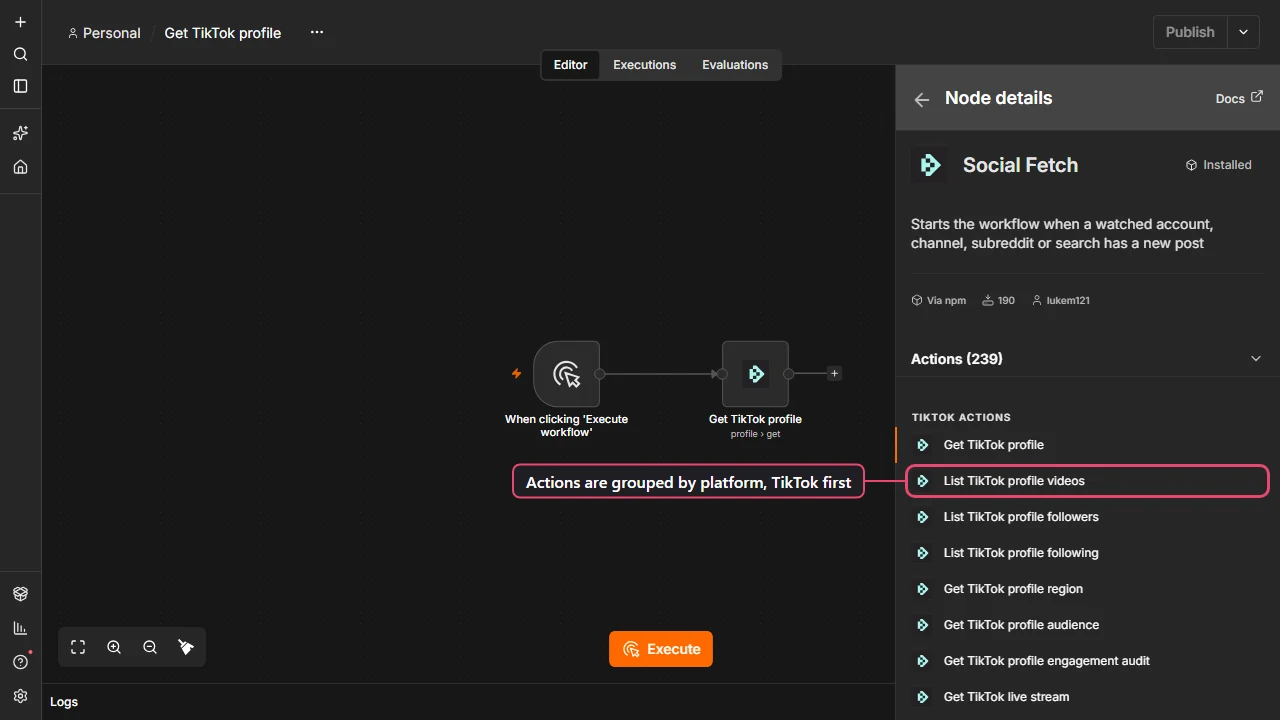
- Click the + on the right of the trigger, search for Social Fetch and select it.
- The panel lists every action, grouped by platform. Under TikTok Actions, choose List TikTok profile videos. (If you pick the wrong one, it doesn't matter: you can change Resource and Operation inside the node.)
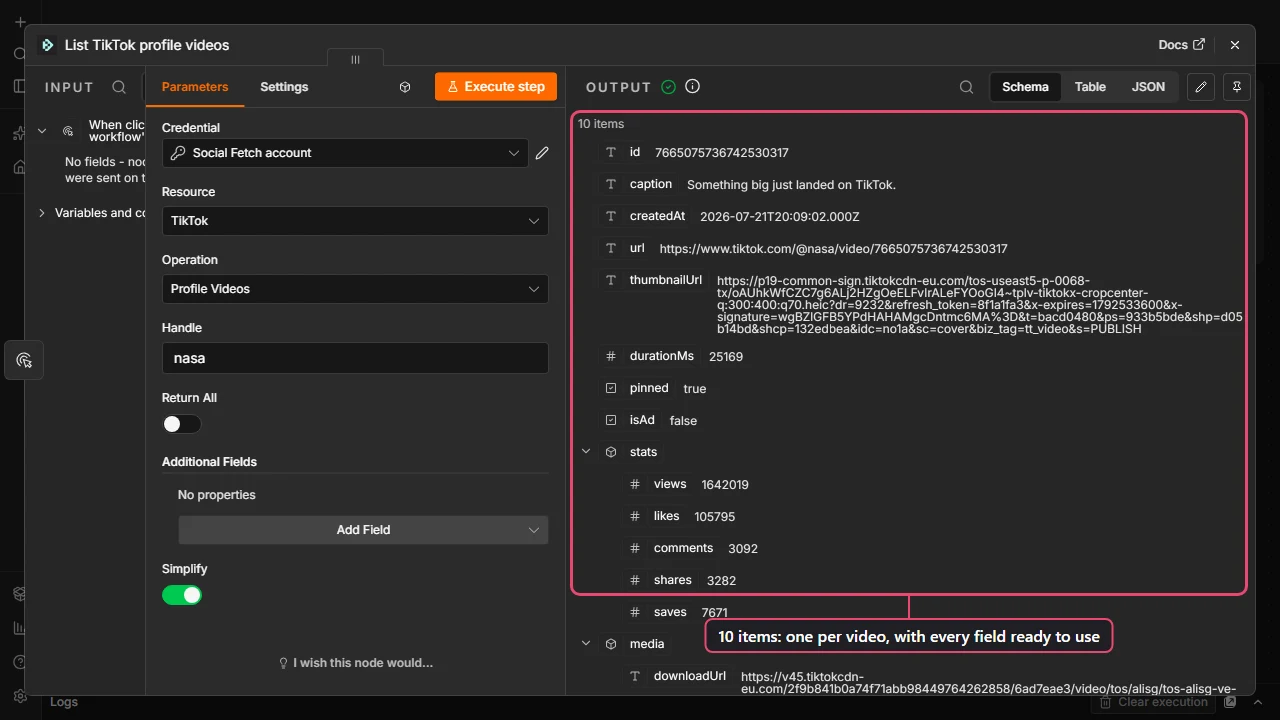
- Check that Credential shows your Social Fetch credential.
- In Handle, type the creator's TikTok username without the @, for example
nasa. - Leave Return All off. The first page holds the creator's most recent videos, which is all a daily check needs.
- Click Execute step.
After a few seconds the output panel on the right fills with one row per video. Switch between Table, JSON and Schema at the top of the panel to explore the fields.
Pin the output while you build
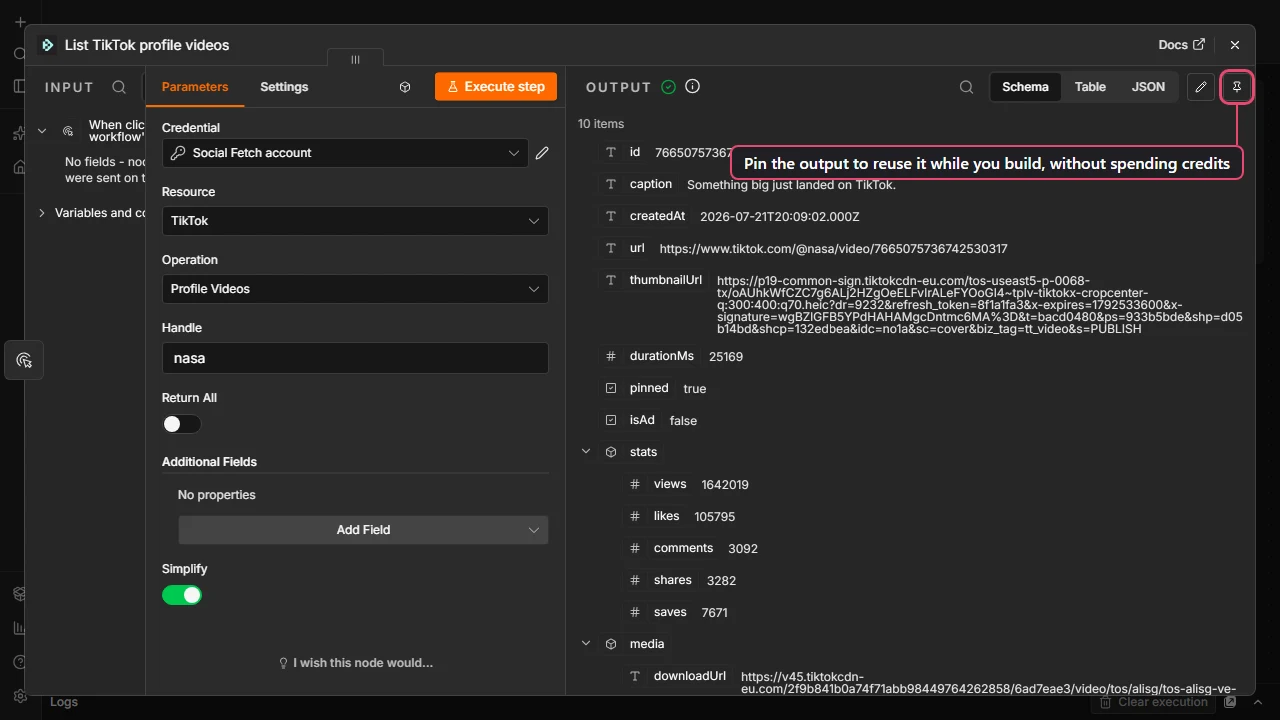
Each Execute step sends a real request and uses credits. Click the pin icon at the top of the output panel to keep this result. While it's pinned, n8n reuses it instead of calling Social Fetch again, so you can work on the next steps for free. You'll unpin it in Step 6.
Step 4: Add the videos to Google Sheets
- Click the + on the right of the Social Fetch node, search for Google Sheets and choose Append row in sheet.
- Under Credential to connect with, create a new credential and click Sign in with Google. On a self-hosted n8n, follow n8n's Google credentials guide first.
- Set Document to your sheet (pick it From list) and Sheet to the tab with your headers.
- Under Mapping Column Mode, choose Map Each Column Manually. A field appears for each header.
- Fill each field by dragging from the input panel on the left, or paste these expressions:
| Column | Value |
|---|---|
| Posted | {{ $json.createdAt }} |
| Caption | {{ $json.caption }} |
| Views | {{ $json.stats.views }} |
| Likes | {{ $json.stats.likes }} |
| URL | {{ $json.url }} |
- Click Execute step. Your sheet now has a row for every video.
Because the Social Fetch node outputs one item per video, Google Sheets runs once per item and adds one row each. You don't need a loop or a Split Out node.
Step 5: Run it every day without duplicates
Right now, every run adds the same videos again. Two changes make it a daily job:
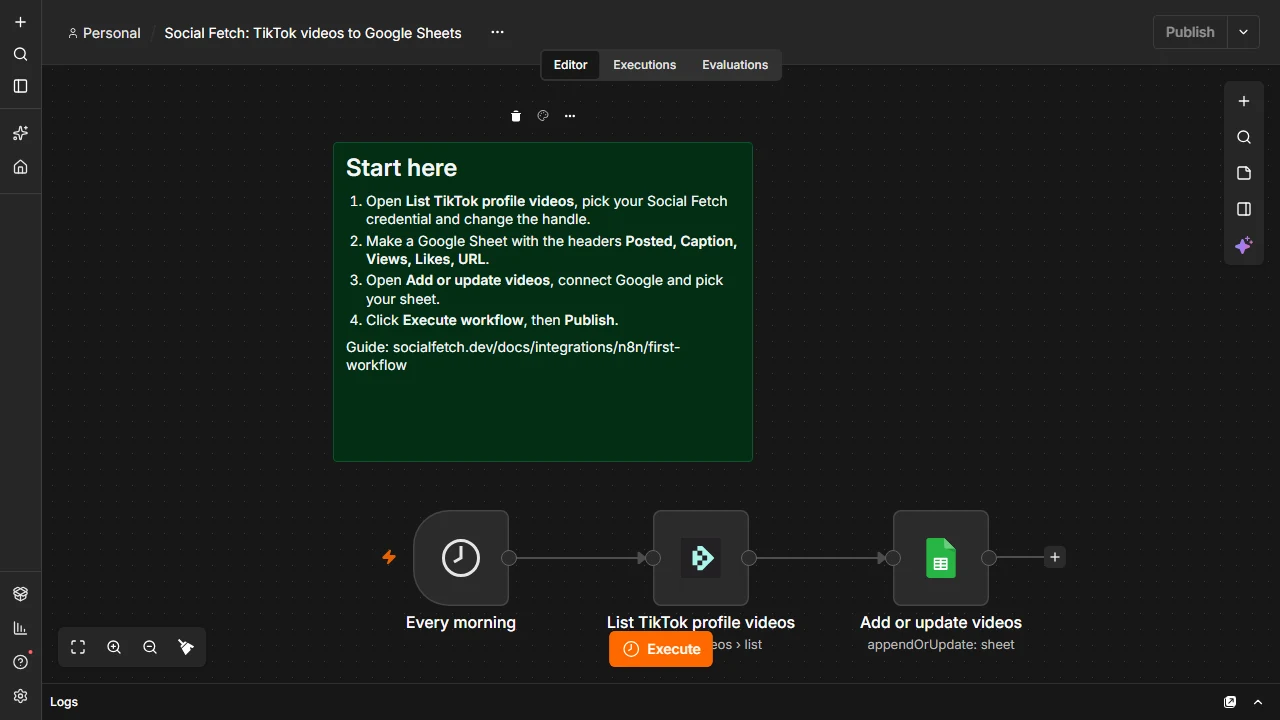
- Update instead of append. Open the Google Sheets node and change Operation to Append or Update Row. Set Column to match on to URL. Videos already in the sheet get their views and likes updated; new videos get a new row.
- Run on a schedule. Delete the manual trigger. Add a Schedule Trigger, set Trigger Interval to Days and pick the hour, then connect it to the Social Fetch node.
Step 6: Unpin and switch it on
- Open the Social Fetch node and click the pin icon again to unpin it. Pinned data only applies while you test in the editor, but unpinning avoids confusion later.
- Click Execute workflow once to check everything works end to end.
- Click Publish at the top right. In older n8n versions, flip the Inactive toggle to Active instead.
From now on n8n runs the workflow every day, and you'll see each run under Executions. One run uses the credits for one request; see Credits and billing.
Make it your own
- Watch several creators. Keep a list of handles in a second sheet, read it with Get row(s) in sheet, and set Handle to
{{ $json.handle }}. Social Fetch runs once per row. See Running the node for every row of a list. - Another platform. The same pattern works for Instagram (List Instagram profile media), YouTube (List YouTube channel videos) and the rest. Field names differ per platform, so run the node once and check the output.
- Get a message for each new video instead. Use the Social Fetch Trigger: it starts the workflow only when there's something new.
Next steps
n8n
Pull live social media and web data into n8n workflows and AI agents with the verified Social Fetch node. No code or HTTP requests needed.
Working with results
How Social Fetch results become n8n items, when to use Simplify and Return All, how to loop over a list of handles or URLs (one run per row), and how to keep credit use predictable.