n8n

Pull live social and web data into your n8n workflows — and AI agents — with a single verified node. No custom HTTP nodes, no glue code.
Social Fetch is a verified n8n node (n8n-nodes-socialfetch). Each operation maps 1:1 to a public API endpoint. Pull profiles, posts, and metrics in workflows, or attach the node to an AI agent as a live data tool.
What you'll need
- An n8n instance on v1.94.0 or later.
- A Social Fetch API key (starts with
sfk_) — create one in your API Keys dashboard. - Credits on your account for metered routes — see Credits & billing.
Install
Install from the editor. Requires owner or admin access; once installed, all instance users can use it.
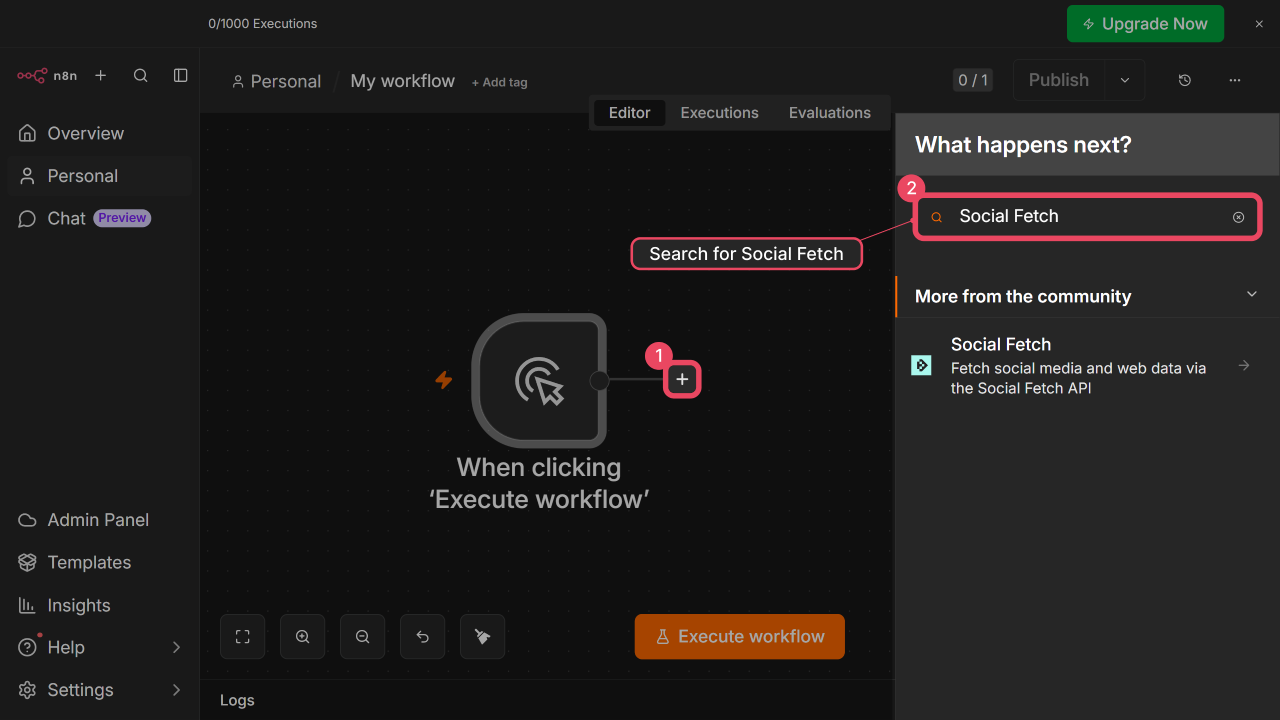
- Open a workflow and open the nodes panel — click
+or pressN. - Search for Social Fetch and select it from the More from the community section.
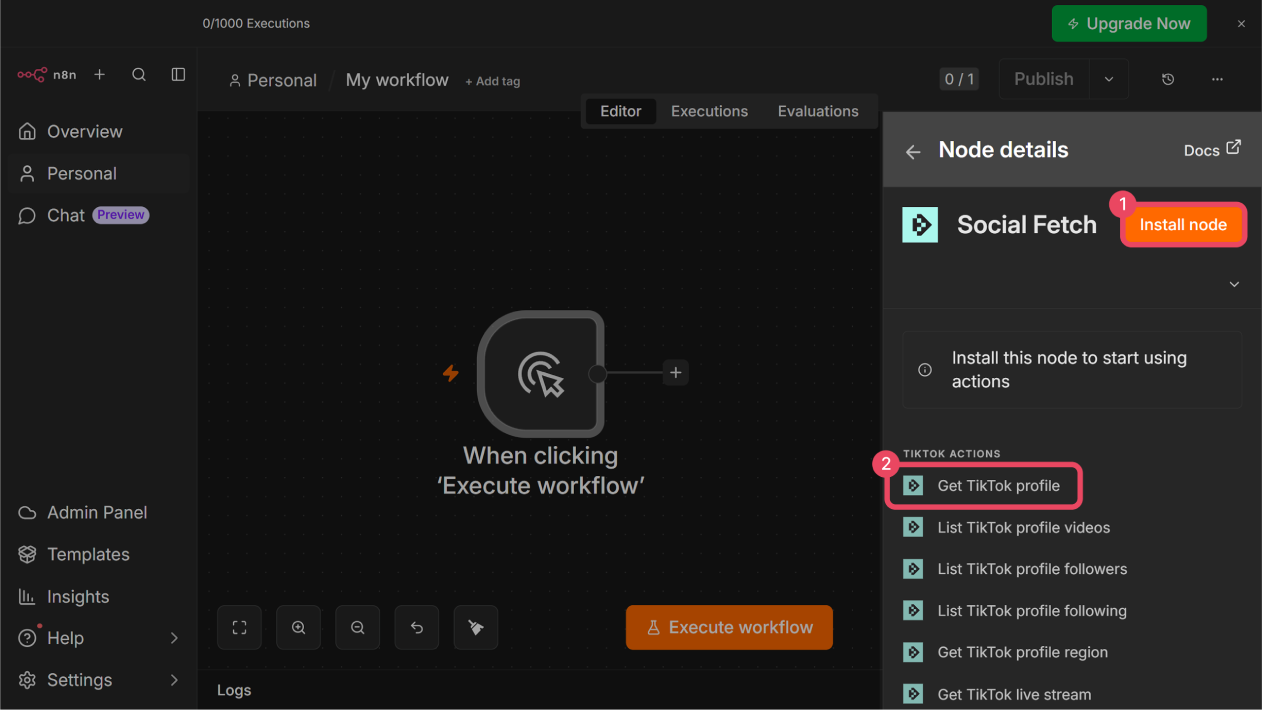
- On the node's details page, click Install node.
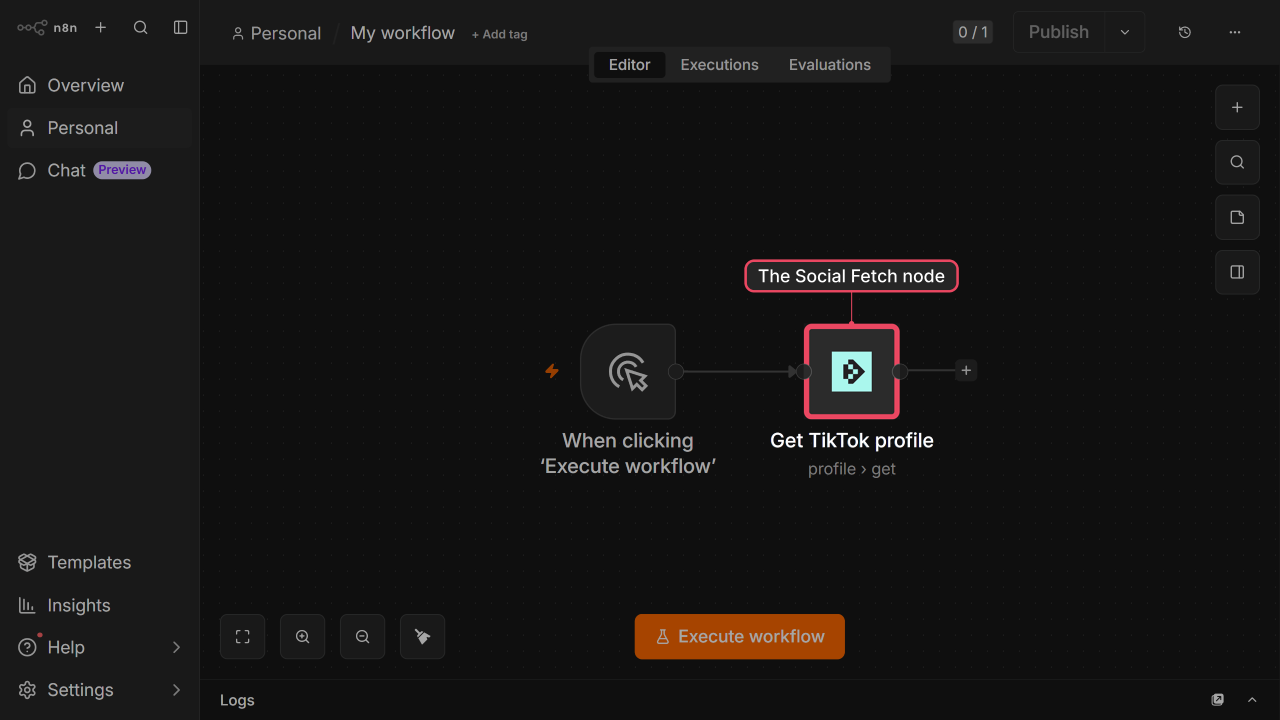
- Pick an action — for example Get TikTok profile — to add the node to your workflow.
Credentials
Authenticate with an sfk_ API key from API Keys:
- Open your Social Fetch node and click Set up credential next to the Credential field.
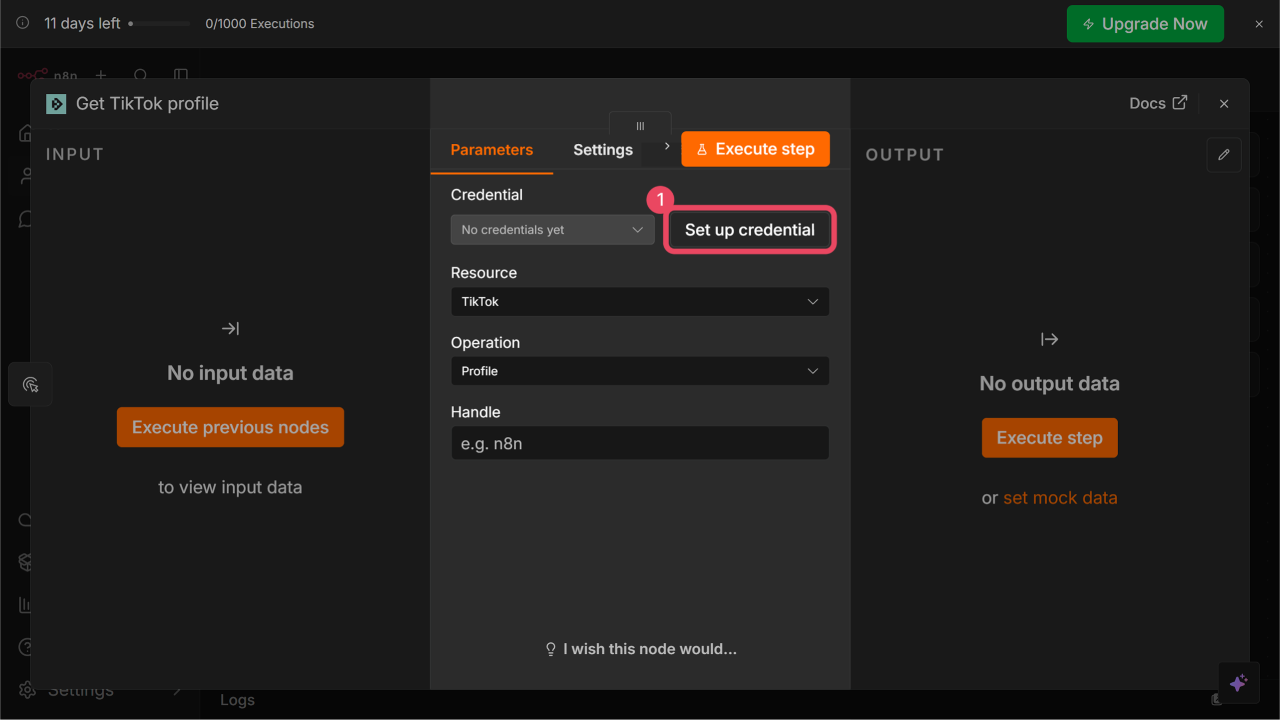
- Paste your key into API Key and click Save.
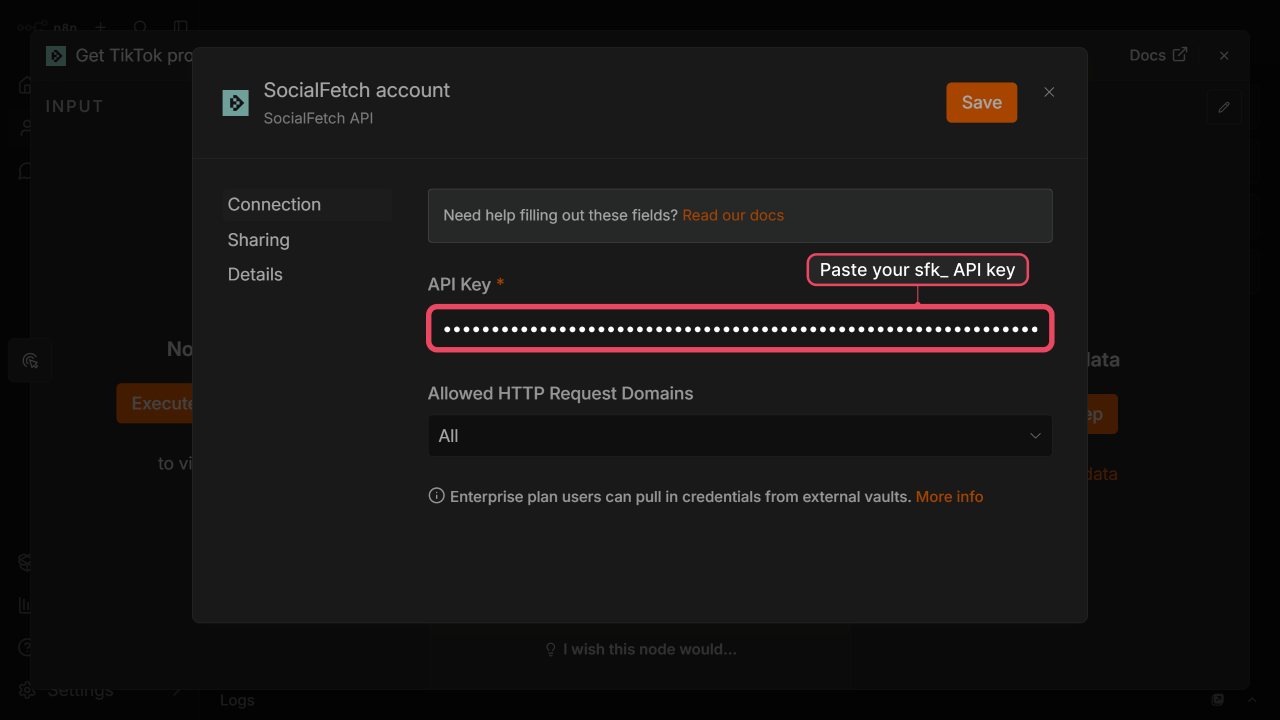
n8n validates the key on save.
Using the node
Open the Social Fetch node and set up the request:
- Credential — select the credential you just created.
- Resource — pick the platform (e.g. TikTok, Instagram, Web) or Account for whoami/balance.
- Operation — choose the endpoint (e.g. Profile, Search, Markdown).
- Required fields — shown as direct inputs on the node.
- Additional Fields — optional query parameters (sort order, limits, etc.).
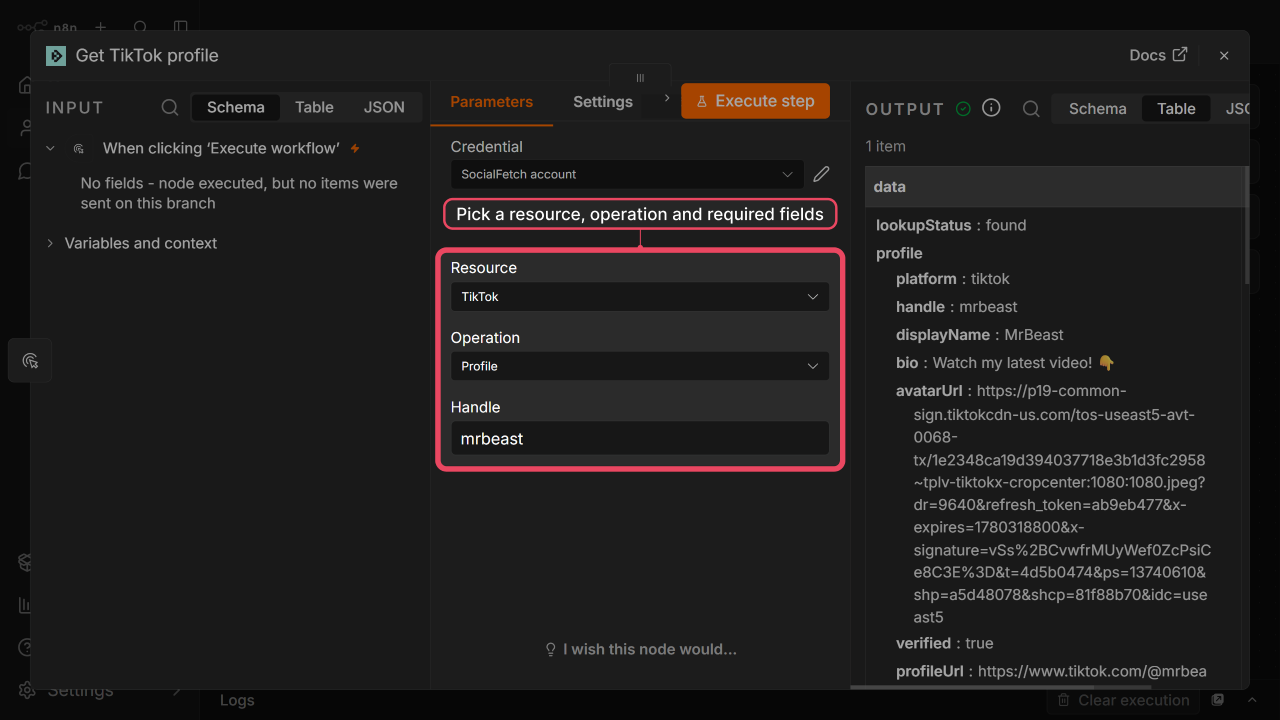
Mark usable as tool to attach the node to n8n AI agents.
Pagination and Return All
Only list endpoints with a cursor query parameter show Return All. When enabled, the node follows data.page.nextCursor until data.page.hasMore is false. Each page is a separate output item with the full API JSON (data, meta, etc.). Merge with n8n's Item Lists or Code node if needed.
List endpoints without a cursor, or that paginate via page, do not show Return All — pass those parameters under Additional Fields for more pages.
Credits
Every request consumes credits (most endpoints cost 1; some search and media options cost more). meta.creditsCharged shows the amount per call. See Credits & billing.
Example workflow
Fetch a TikTok creator's recent videos and filter for high performers.
- Manual Trigger — run on demand while testing.
- Social Fetch — Resource
TikTok, OperationProfile videos.- Handle:
n8n - Return All on to page through every video, or off for the first page.
- Additional Fields → Sort By:
Popular.
- Handle:
- Split Out — field:
data.videos(one item per video). - Filter —
{{ $json.stats.views }}is greater than100000.
Each Social Fetch item is one API page. Split Out turns data.videos into individual items so Filter can evaluate stats.views per video.
Example response shape (first video on a page):
{
  "data": {
    "videos": [
      {
        "id": "7639528062975053069",
        "caption": "…",
        "url": "https://www.tiktok.com/@handle/video/7639528062975053069",
        "stats": {
          "views": 302447,
          "likes": 19880,
          "comments": 339,
          "shares": 2232,
          "saves": 389
        }
      }
    ],
    "page": { "nextCursor": "…", "hasMore": true }
  },
  "meta": { "creditsCharged": 1, "requestId": "…", "version": "v1" }
}
Enrichment pattern
Enrichment: TikTok → User search (or Search videos) to discover handles, then loop into Profile videos or Profile for full details.