Track your first X account
A step-by-step guide to tracking an X account with the Social Fetch Follower Tracker: look it up, choose what to collect, check the cost and start tracking.
This guide tracks a real account from start to finish. It uses @biomejs, the account of a developer tool with about 10,000 followers, but any public account works the same way. You'll finish with the account's whole audience collected and a schedule that checks it for changes.
Step 1: Open the tracker
Sign in to the Social Fetch app. In the top menu, open Tools and choose X Follower Tracker.
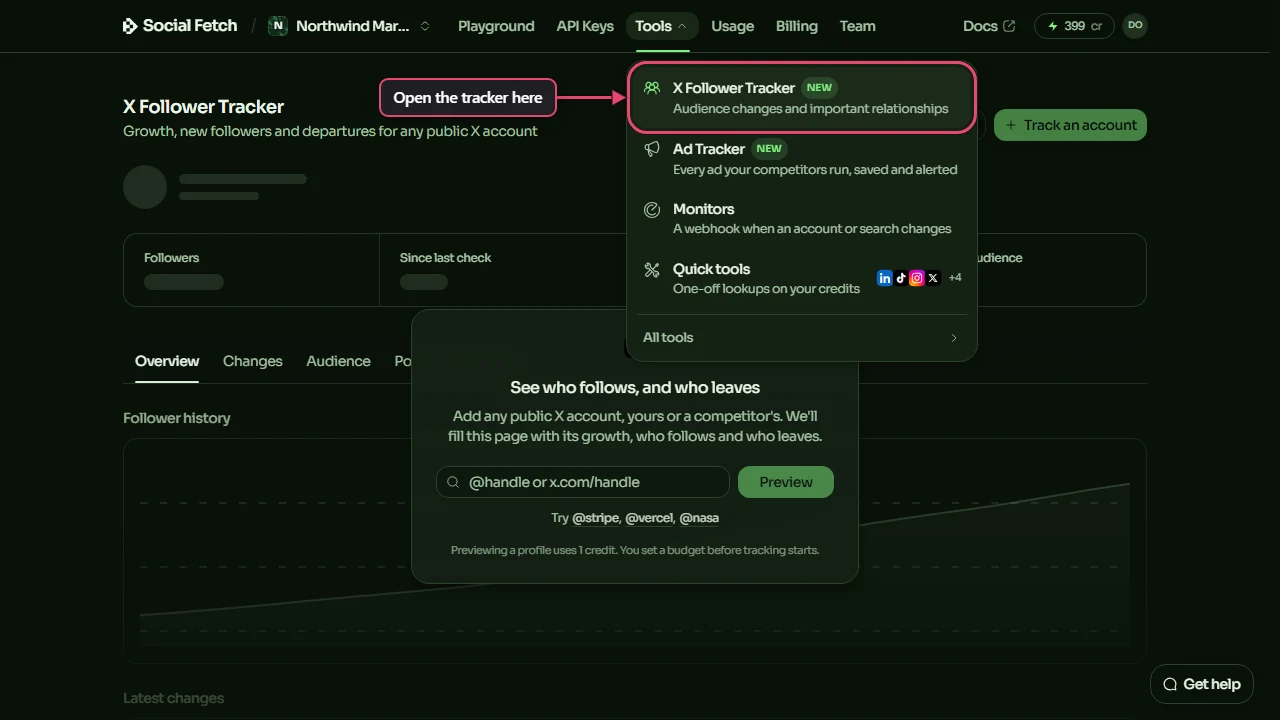
Step 2: Look up the account
The first time you open the tracker, it asks which account you want to see. Type the handle in the box and click Preview. If you already track other accounts, click Track an account at the top right instead.
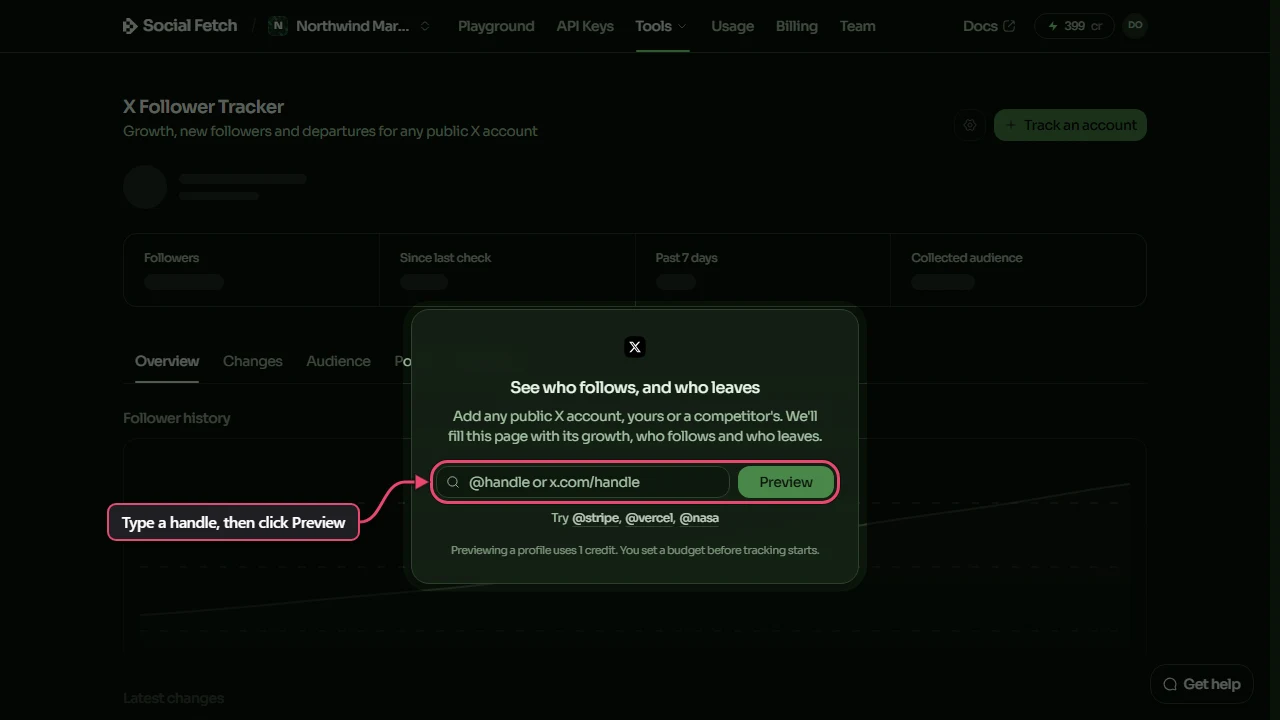
You can type the account in any of these ways:
- the handle on its own:
biomejs - the handle with an @:
@biomejs - the profile link:
x.com/biomejsorhttps://twitter.com/biomejs
Use the handle, not the display name. Handles are the part after the @: up to 15 letters, numbers and underscores, with no spaces. If the tracker says Enter an X handle or public profile URL, check for a space, a typo or a display name.
The tracker opens Track an X account and looks the account up. Check the profile card under the handle box to make sure it's the account you meant: the name, picture, bio and follower count come straight from X.
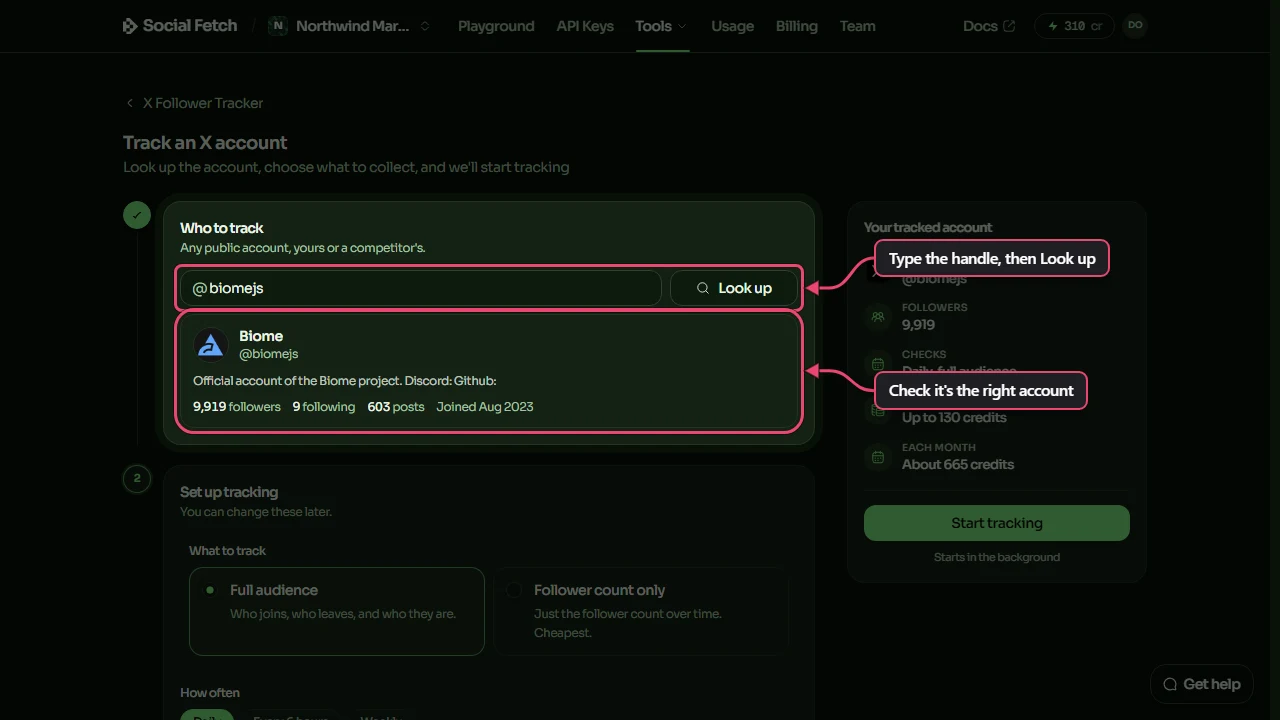
Looking up an account uses 1 credit; clicking Preview and the lookup that follows count once. To try a different account, change the handle and click Look up again, which uses another credit.
Step 3: Choose what to track
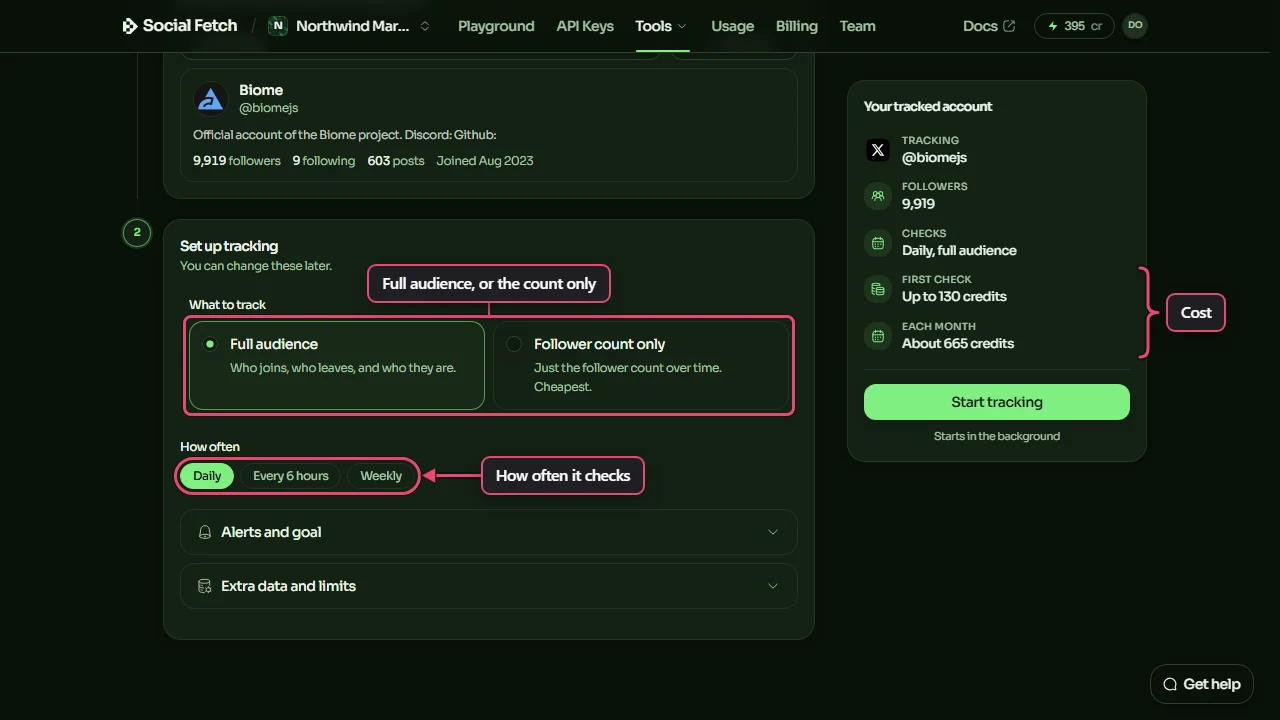
Under Set up tracking, make two choices:
- What to track. Full audience collects every follower, so you can see who followed and who left. Follower count only just records the number each time, and costs much less. Choose Full audience unless you only care about the count.
- How often. Daily suits most accounts. Every 6 hours shows changes sooner and costs four times as much. Weekly is the cheapest.
As you choose, the Your tracked account panel on the right updates the cost of the first check and of a month of checks.
Step 4: Check the extras and limits
Open Extra data and limits. Three extras start switched on:
- Following list also collects who the account follows, so you can see mutual follows. It adds a little to every check.
- Post context collects the account's recent posts, so you can line up posts with growth.
- AI insights labels followers by role and topic, lets you filter the audience in plain English, and picks out highlights after each check. Your private notes and tags are never sent to it.
Turn off anything you don't need. You can change all of these later.
Below them, Most credits one check can use sets a limit for each check: one for follower lists, one for profile details and one for posts. They start at 100, 100 and 10 credits. When you look up a big account, the tracker raises the follower lists limit to fit its size, so you can usually leave these as they are. If a check does reach a limit later, it stops and keeps everything it already collected. Costs and limits explains each one.
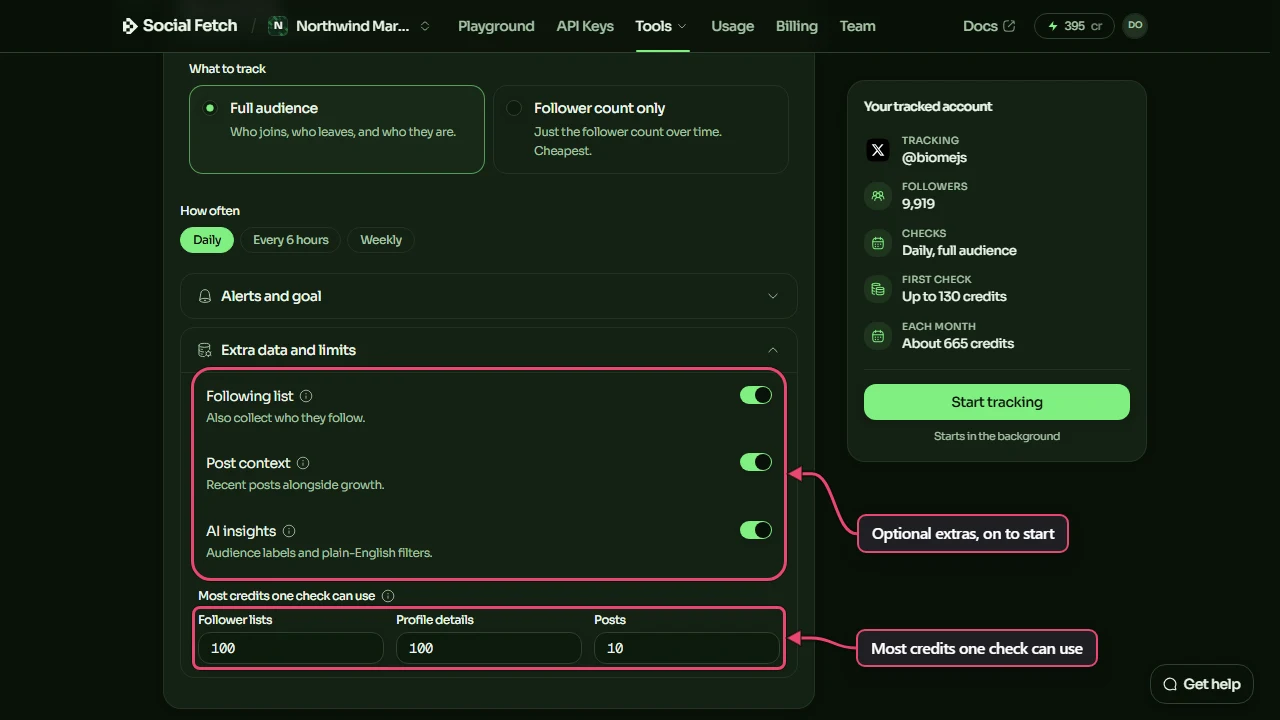
The section above it, Alerts and goal, sets up email alerts and a follower goal. The alerts all start switched off. See Alerts and exports.
Step 5: Start tracking
Check the panel on the right one last time. First check is the most the first check can cost; it's the biggest because it collects the whole audience and fills in profile details. Each month estimates the regular checks after it. When you're happy, click Start tracking.
If your balance is lower than the first check, the panel says so. You can still start: the first check collects what your credits allow, and you can carry on later. See When a check stops.
Step 6: Let the first check run
The tracker opens the account's page and starts the first check. A progress bar shows each stage: the account, its followers, their profile details, recent posts, AI labels and, finally, Ready.
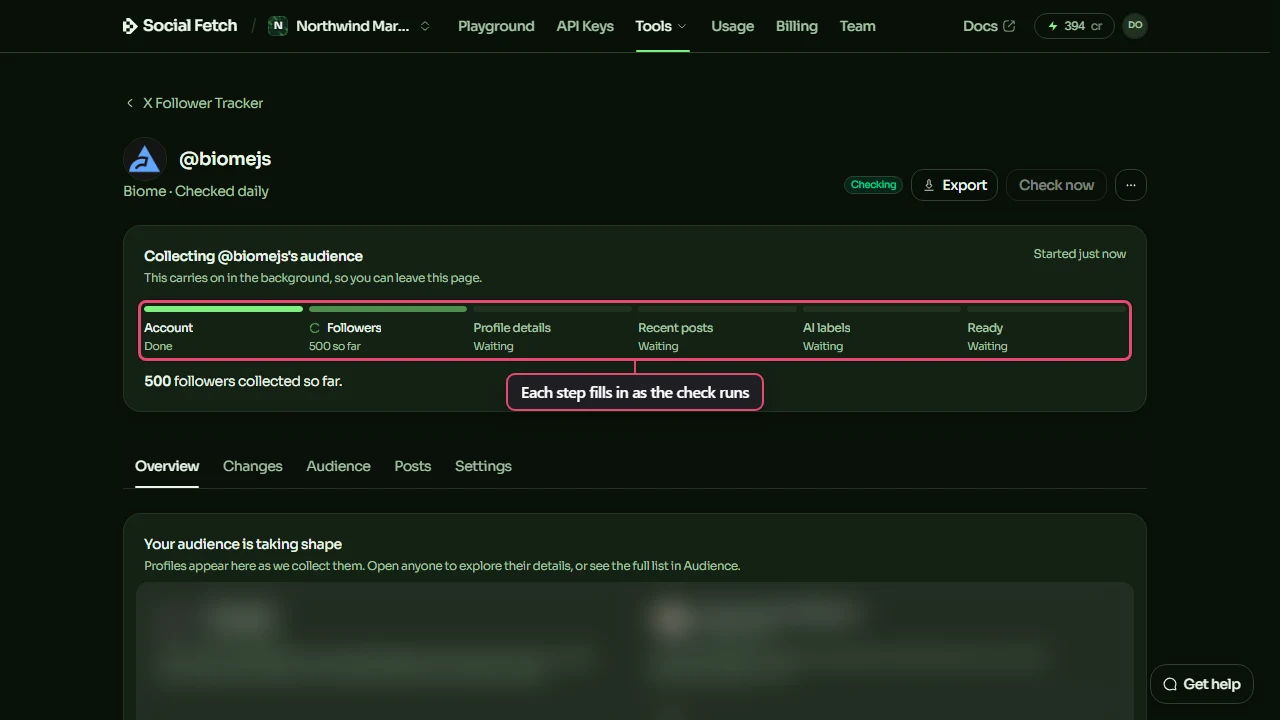
The check runs in the background, so you can close the page and come back later. Collecting the followers is the quick part. Filling in names, bios and pictures takes longer, and the bigger the audience, the longer it takes.
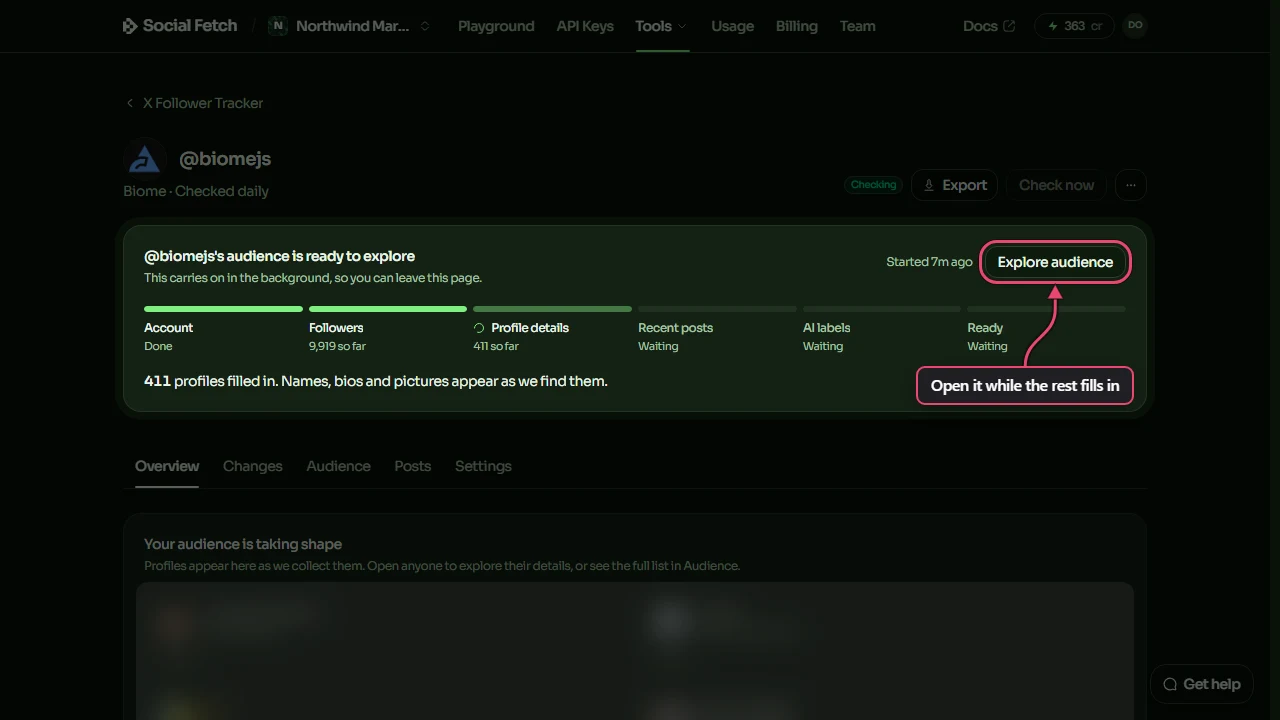
You don't have to wait for the end. As soon as every follower is collected, the title changes to audience is ready to explore and an Explore audience button appears. Names, bios and pictures keep filling in after that.
What happens next
The first check is the starting point, so it doesn't list anyone as a new follower. From the next scheduled check on, the account page shows who followed, who left and who came back. To see changes sooner, click Check now at the top of the account page once the first check has finished. Each extra check costs the same as a scheduled one.
X Follower Tracker
Track any public X account in the Social Fetch app: follower growth, who followed, who left and who came back, with a searchable audience. No code needed.
Read your results
Understand a tracked X account's page: follower growth, highlights, new followers, confirmed departures, returns, unconfirmed people and gaps between checks.