X Follower Tracker alerts and exports
Get email digests and alerts when a tracked X account gains or loses followers or someone on your watchlist changes, set a follower goal, and download CSV files.
Turn on email alerts
Every email alert starts switched off. To choose yours, open the account's Settings tab, open Alerts and goal, switch on what you want and click Save settings.
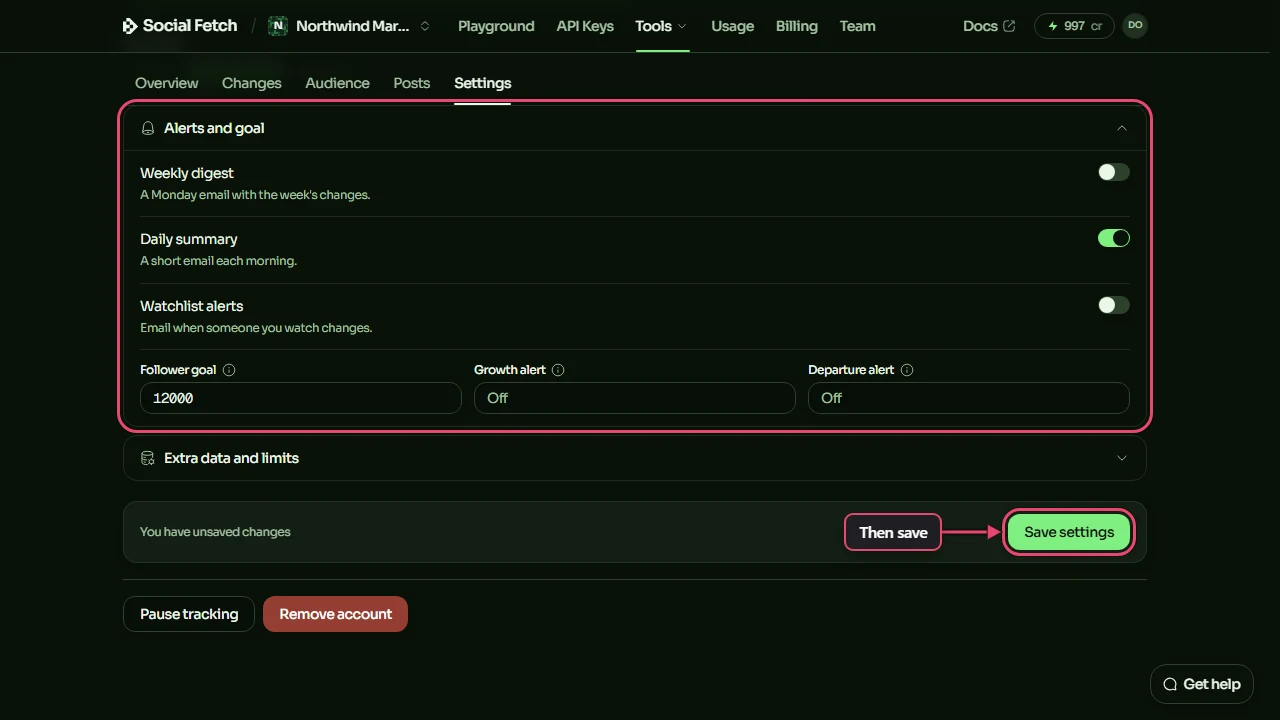
| Setting | What you get |
|---|---|
| Weekly digest | An email on Monday morning with the week's new followers, departures and returns. |
| Daily summary | A short email each morning with the day's changes. |
| Watchlist alerts | An email after a check when someone on your watchlist follows or leaves. |
| Growth alert | An email when one check finds at least this many new followers. Leave it blank for no alert. |
| Departure alert | An email when one check finds at least this many people who left. Leave it blank for no alert. |
The digest and summary arrive at around 8am UTC (8am London time in winter, 9am in summer) and are sent even when nothing changed, so you know the tracker is still running. They give counts of new followers, departures and returns, and name anyone on your watchlist who changed. With Weekly digest or Watchlist alerts on, you also get an email when the first check has collected the audience.
Emails go to the person who added the account. Each email ends with a link to turn off follower tracker emails. That link turns them off for every tracked account in the workspace, including ones other people added, so in a shared workspace it's better to switch off just the alerts you don't want in each account's Settings.
Set a follower goal
Follower goal, in the same section, is a number to aim for. The account's page shows how close you are under Followers, and says when you reach it. It doesn't send an email.
Export to CSV
Download what the tracker has collected as CSV files, which open in Excel, Google Sheets or Numbers. On the account page, click Export and choose one:
- Audience: everyone who follows the account, with their handle, name, follower count, bio and category. It's available once the first check has collected the audience.
- Change history: every new follower, departure and return, with their handle and name and the time window when the tracker saw each change.
- Account summary: the account's follower count, collected audience, profile details and check dates.
To export part of the audience, set up filters or open a segment on the Audience tab and click Export CSV there. The file has just the people you can see.
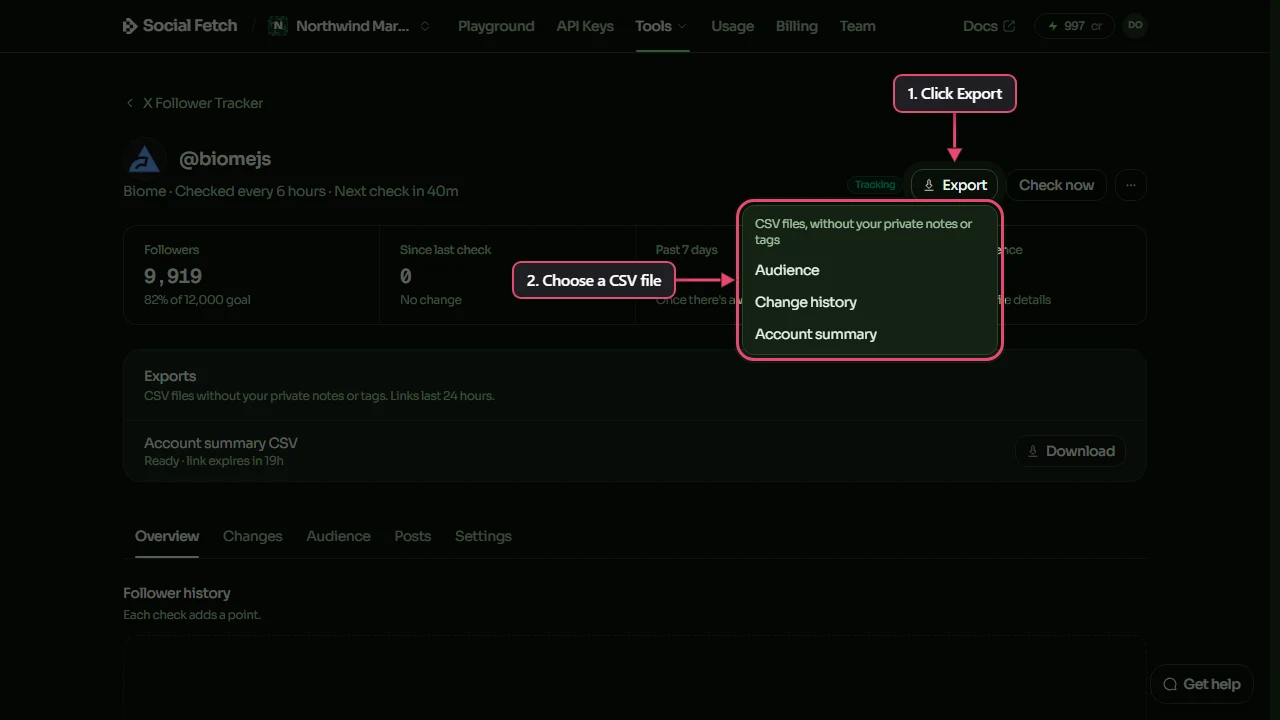
The file is prepared in the background. The Exports panel above the tabs shows its progress, then a Download button. Each file holds up to 1,000 rows, so a bigger export comes in parts, with a button for each.
A few things to know:
- Exports never include your private notes, tags or AI labels. Email addresses and phone numbers in bios are masked.
- In the change history, handle and name are blank for people whose profile details haven't been collected (for example when the Profile details limit was reached). Their X account ID is always there, in the id column.
- Each export can be downloaded for 24 hours, and only by the person who asked for it.
Costs and limits
What the X Follower Tracker spends credits on, how to read its estimates, the limits on each check, a monthly cap, and what to do when a check stops.
Use cases
Ways to use the X Follower Tracker: watch a competitor's audience, grow your own account, keep track of the people who matter, check an account before a partnership and report to clients.