Read your X Follower Tracker results
Understand a tracked X account's page: follower growth, highlights, new followers, confirmed departures, returns, unconfirmed people and gaps between checks.
Each tracked account has its own page, opened from the tracker home page. Along the top are the account, when it's checked, its status, Export, Check now and a ⋯ menu with Pause tracking and Remove. Below them are five tabs: Overview, Changes, Audience, Posts and Settings.
The numbers at the top
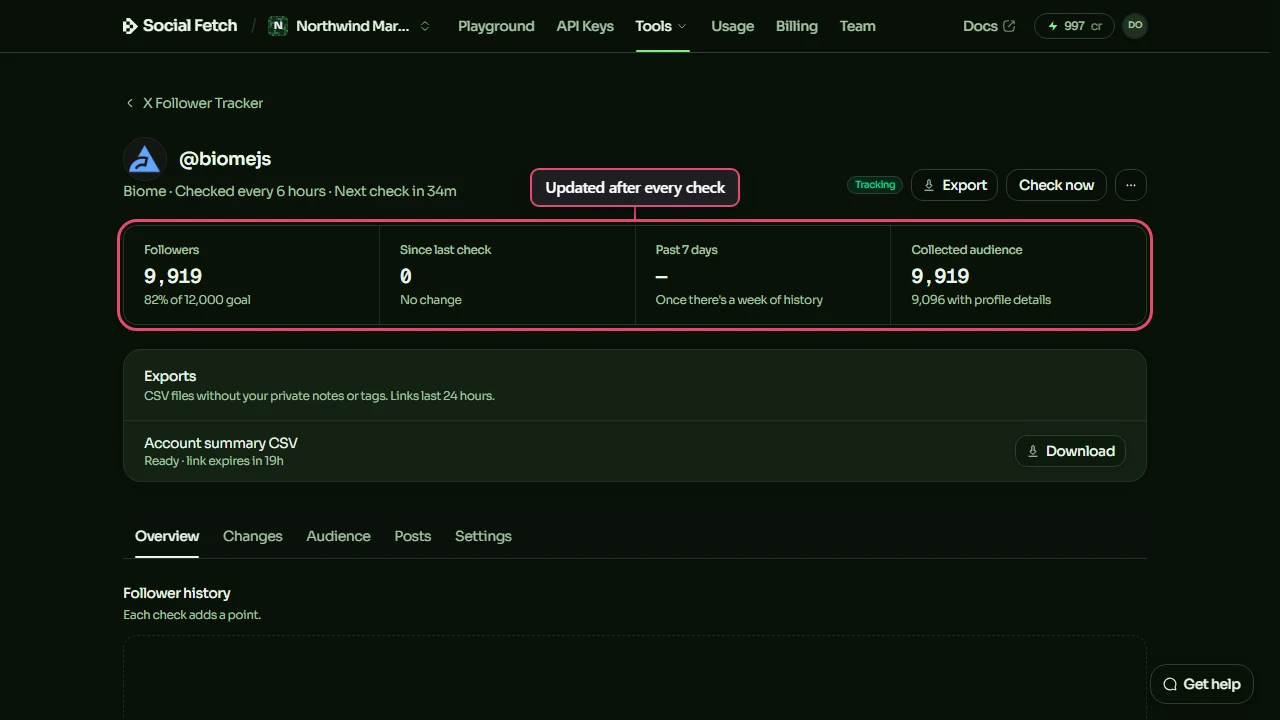
- Followers: the follower count X showed at the last check. If you set a follower goal, it shows how close you are.
- Since last check: how much the count changed since the check before.
- Past 7 days: the change over the last week, once there's a week of history.
- Collected audience: how many followers the tracker has in its list, and how many of them have profile details.
Follower history
The chart shows the follower count at each check. Choose 7 days, 30 days, 90 days or All once there's enough history. With Post context on, the account's own posts appear as dashed lines, so you can see whether follower jumps line up with particular posts. Lining up doesn't prove a post caused the change.
Below the chart, the tracker says when the account was last checked and when the next check is due.
If tracking was paused, a check stopped or a check was missed, the chart says No checks ran for a while from that date. Changes across the gap are grouped together, because the tracker can't tell exactly when they happened.
Highlights
With AI insights on, Highlights picks out what's worth knowing from the latest check, such as a jump in followers, people on your watchlist who changed, or how a segment grew. Each highlight comes from the account's own numbers, and See the data opens the list it's based on.
Who followed and who left
Recent changes on the Overview shows the latest few, and the Changes tab lists them all, newest first. Each person has a label:
| Label | What it means |
|---|---|
| New follower | Started following since the check before. |
| Left | Stopped following, and the tracker confirmed it. |
| Came back | Followed again after an earlier confirmed departure. |
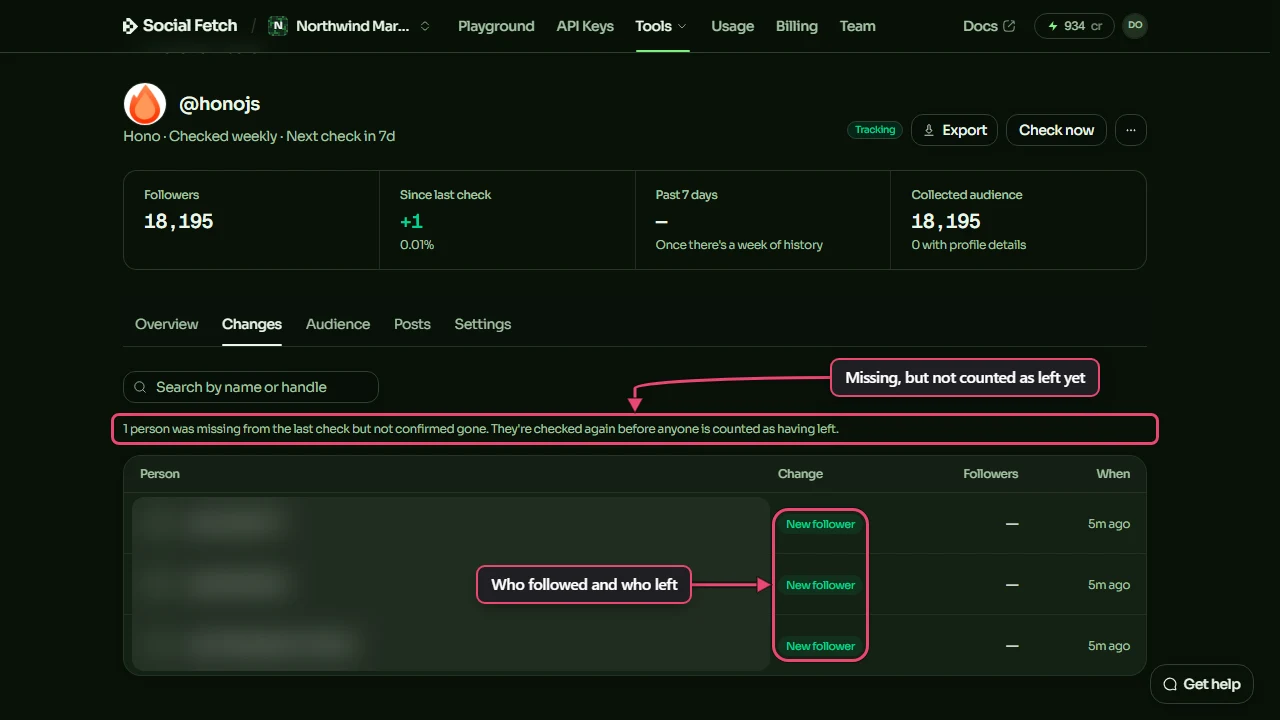
When shows when the tracker saw the change. Someone who followed could have done so at any time since the check before, so with daily checks a change is accurate to the day. The Change history export has the exact window for each one.
Search the Changes tab by name or handle. Click anyone to open their profile.
The first check is the starting point, so it has no changes. They start with the second check.
Why some people aren't counted as gone yet
Sometimes a follower is missing from a check but the tracker can't confirm they left, for example because their account is suspended or temporarily hidden. The Changes tab then says how many people were missing from the last check but not confirmed gone. The tracker checks them again each time, and only counts them as Left once it's sure. This is why its numbers can differ from simple unfollower apps that count everyone who's missing.
The account's status
The badge next to Export, and the card on the tracker home page, show what the account is doing:
| Status | Meaning |
|---|---|
| Tracking | Checks are running on schedule. |
| Up to date | The last check finished. The next one runs on schedule. |
| Check queued | A check is about to start. |
| Checking | A check is running now. |
| Paused | No checks run until you resume. Its history is kept. |
| Limit reached | A check stopped at a credit limit. Raise it, then click Check now. See Costs and limits. |
| Needs credits | A check stopped because your balance ran out. Add credits, then click Check now. |
| Needs attention | Something went wrong. Click Check again. See Troubleshooting. |
Change the settings
Everything you chose when you started, and the alerts, live in the account's Settings tab: what to track, how often, the extras, the limits and Alerts and goal. Change what you need and click Save settings. The changes apply from the next check.
Posts
With Post context on, the Posts tab shows the account's posts from the last 30 days, with their replies, reposts, likes, bookmarks and views at the last check. Switch between Posts (its own posts and quotes) and Replies, reposts and context. Older posts have had longer to collect engagement, so compare like with like.
Pause or remove an account
Open ⋯ at the top of the account page, or use the buttons at the bottom of Settings:
- Pause tracking stops checks and keeps everything. Resume tracking starts checking again within a few minutes.
- Remove stops checks straight away. The account's history is kept for 30 days, then deleted.
Track your first account
A step-by-step guide to tracking an X account with the Social Fetch Follower Tracker: look it up, choose what to collect, check the cost and start tracking.
Explore the audience
Search and filter everyone who follows a tracked X account, describe who you want in plain English, keep a watchlist, save segments and find mutual follows.