Explore an X account's audience
Search and filter everyone who follows a tracked X account, describe who you want in plain English, keep a watchlist, save segments and find mutual follows.
The Audience tab lists everyone who follows the tracked account, from the first check onwards. It needs Full audience tracking; an account tracked by count only has no list to explore.
Along the top are four views: Everyone, Watchlist, Mutuals & follow-backs and Segments.
Search and filter everyone
Everyone starts with the biggest accounts first. Narrow it down in three ways:
- Search names and bios.
- Open Filters for follower counts, words in the bio, location, verified badges, your own tags and, with AI insights on, topic and role.
- Click a quick filter: 10k+ followers, Verified, New this week, Accounts under 30 days old or No bio. Click it again to turn it off.
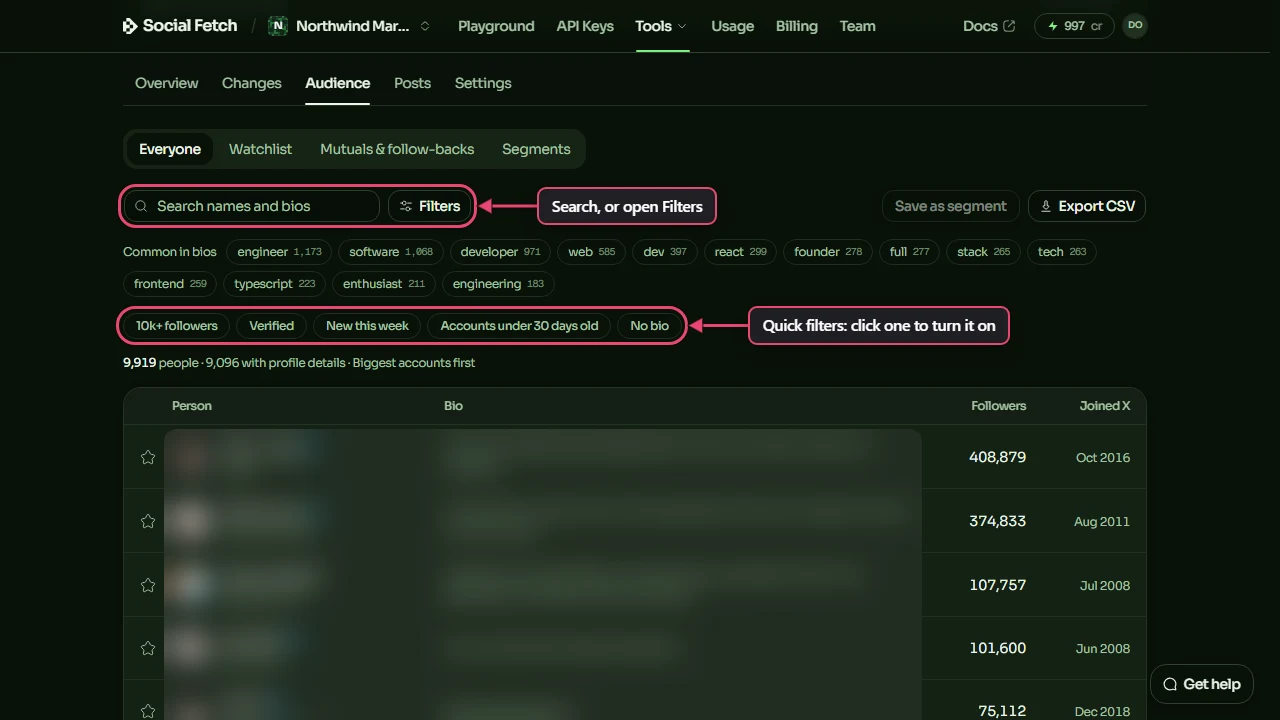
Common in bios shows the words that come up most often in followers' bios, with how many bios include each one. Click a word to see just those people. It's a quick way to see what an audience is made of.
The line above the list counts the matches and how many have profile details: name, bio, picture and follower count. The first check fills in details for as many people as the profile details limit allows, then keeps going on later checks. Until someone's details are in, their row says Profile details not collected yet, and filters on bios, locations or follower counts can't match them.
Describe who you want
With AI insights switched on, the Filters window has a box at the top: Describe who you want. Type what you're looking for in plain English and click Apply, for example:
- Developers with over 1,000 followers
- Founders
- Verified accounts with under 500 followers
The AI turns your description into the ordinary filters below the box, so you can see exactly what it chose and change anything that's wrong. It understands a fixed set of words about roles, topics, follower counts, badges and dates. A description with anything else in it, such as a name, a handle or a link, isn't sent, and it never sees your notes.
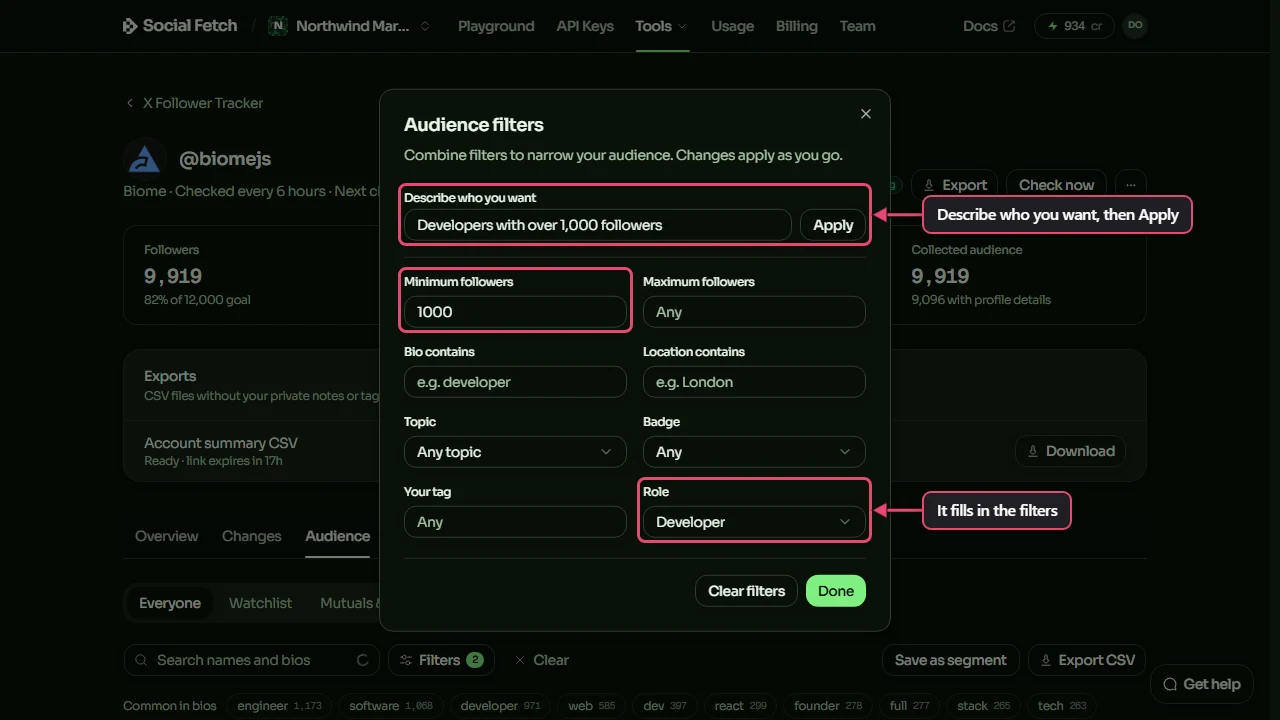
Role and Topic come from AI labels, which the tracker adds after it collects profile details. The labels are only set when the AI is very sure, so many people have none, and a role or topic filter shows fewer people than you might expect. You can set someone's labels yourself from their profile.
If the box says AI filters are unavailable, use the filter controls directly. See Troubleshooting.
Open someone's profile
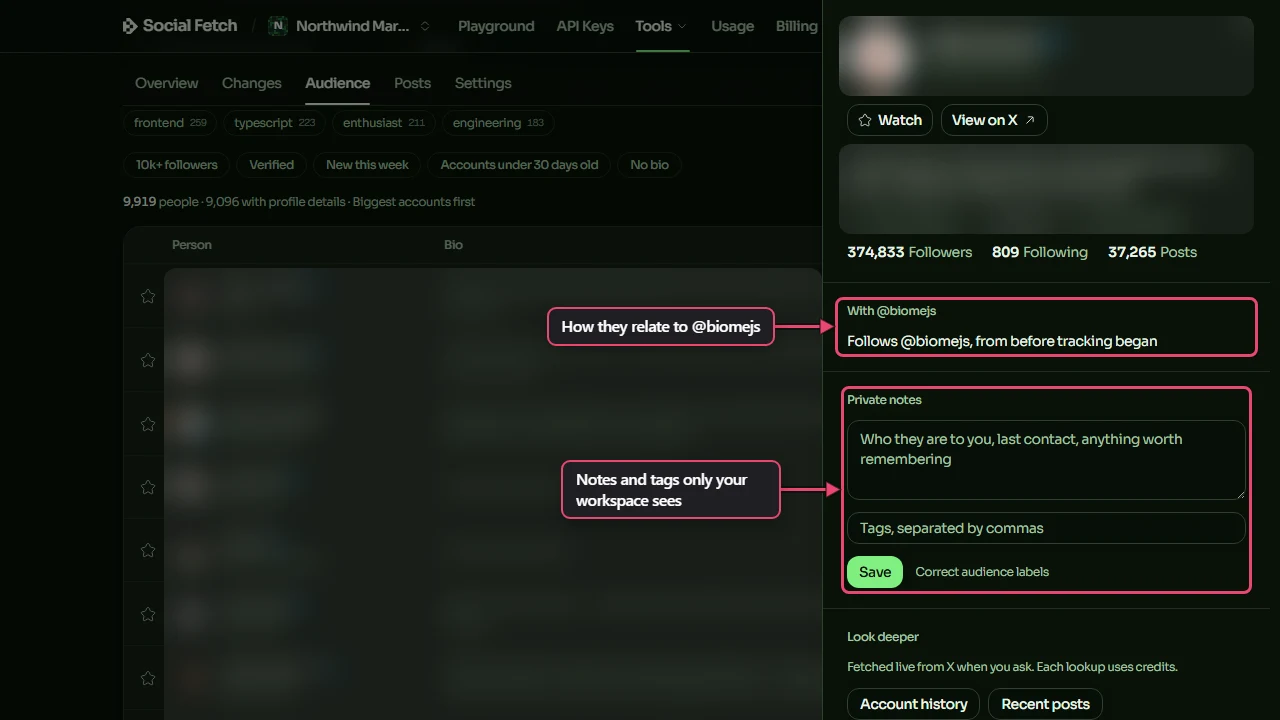
Click anyone in a list to open their profile on the right. It shows their bio, location, website, when they joined X and their follower numbers, then:
- With @account: when they started following the tracked account, or that they were already following before tracking began, and whether the account follows them back.
- Profile changes: changes to their handle, bio or counts that the tracker noticed.
- Audience labels: their AI labels, with Correct audience labels to set them yourself.
- Private notes: notes and tags only your workspace can see. They're never sent to the AI or included in exports.
- Look deeper: Account history and Recent posts, fetched live from X when you click. Each lookup uses credits.
Keep a watchlist
Star the people who matter to you: customers, investors, partners or rivals. Click the star beside anyone in a list, or Watch in their profile. Watchlist shows everyone you've starred, with their tags.
Watched people get their profile details refreshed first, and you can get an email when one of them follows or leaves. See Alerts and exports.
Save a segment
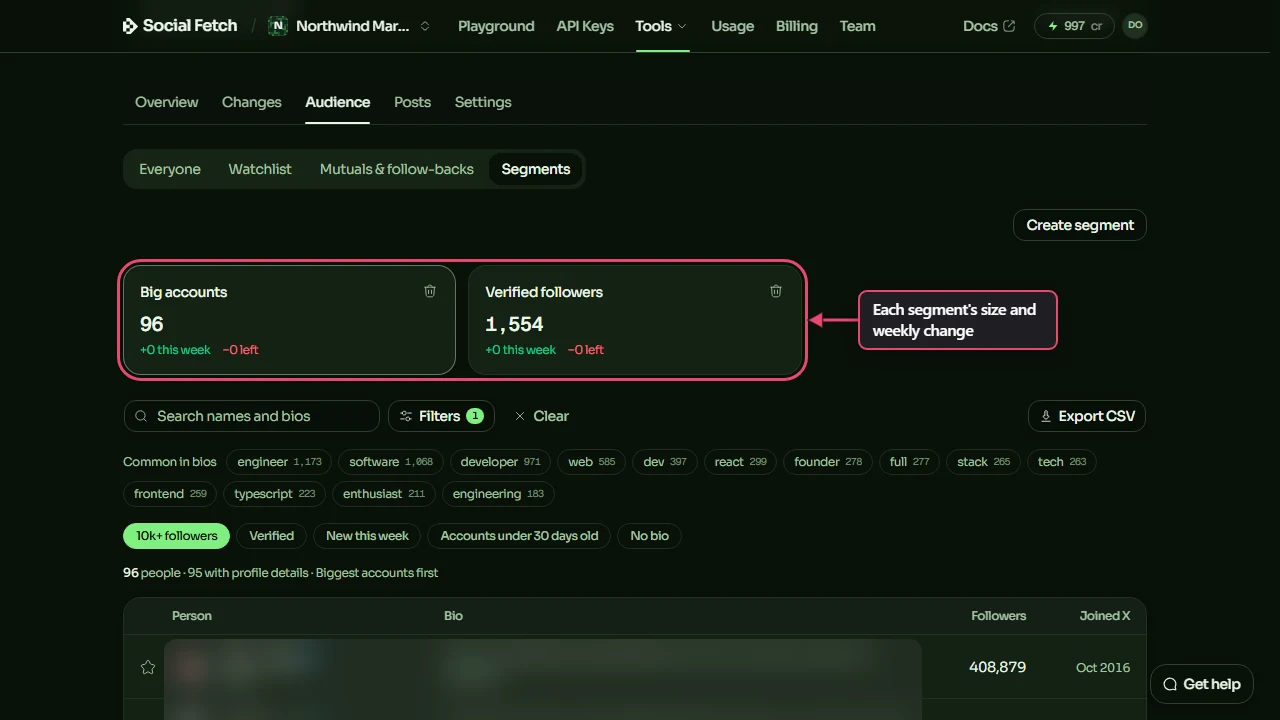
A segment is a saved set of filters, such as verified founders or new followers with 10k+ followers. Set up a search or filters, click Save as segment and give it a name.
Segments shows a card for each one with how many people match, how many joined in the last week and how many left. Click a card to see its people. To delete a segment, use the bin icon on its card; it's deleted straight away.
Find mutuals and follow-backs
With Following list switched on, Mutuals & follow-backs compares the account's followers with the accounts it follows:
- Mutuals: people who follow the account and are followed back.
- @account doesn't follow back: followers the account doesn't follow.
- Don't follow @account back: accounts it follows that don't follow it.
The lists fill in once the first check has collected the following list. If the following list is switched off, Set up following list opens the setting.
Compare two accounts
When you track two or more accounts, the tracker's home page shows Compare audiences. Choose two accounts to see how many followers they share, what share of each audience that is, and how many are unique to each. Both accounts need to have collected their audience.
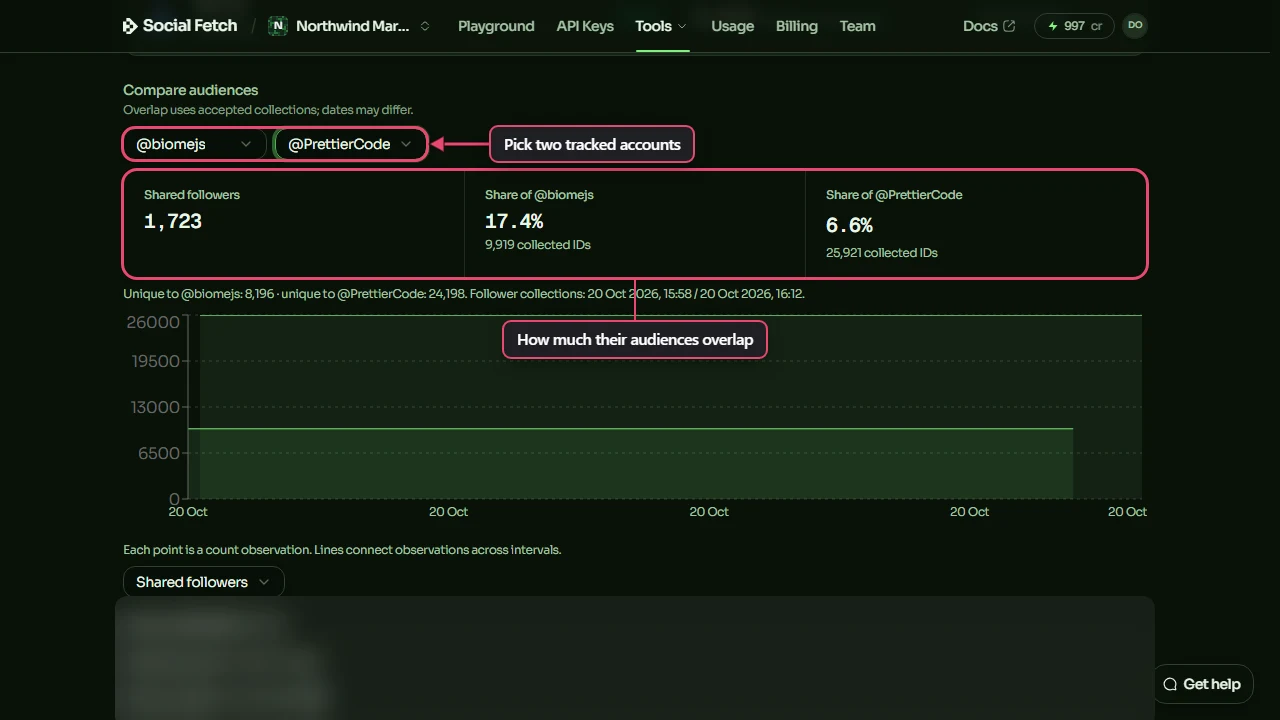
In this example, 1,723 people follow both @biomejs and @PrettierCode. That's 17.4% of Biome's audience but only 6.6% of Prettier's, so most of Prettier's followers don't follow Biome. Below the figures, a list shows the shared followers, or the people unique to either account.
Download the audience
Export CSV downloads the list you're looking at, with your filters applied. See Exports.
Read your results
Understand a tracked X account's page: follower growth, highlights, new followers, confirmed departures, returns, unconfirmed people and gaps between checks.
Costs and limits
What the X Follower Tracker spends credits on, how to read its estimates, the limits on each check, a monthly cap, and what to do when a check stops.