Track your first competitor's ads
A step-by-step guide to tracking a competitor with the Social Fetch Ad Tracker: find the brand, check its ad library accounts, see the cost and start collecting its ads.
This guide tracks a real brand from start to finish. It uses Duolingo, which advertises on all four libraries, but any brand works the same way. You'll finish with the brand's ads saved in your tracker and checks that keep them up to date.
Step 1: Open the Ad Tracker
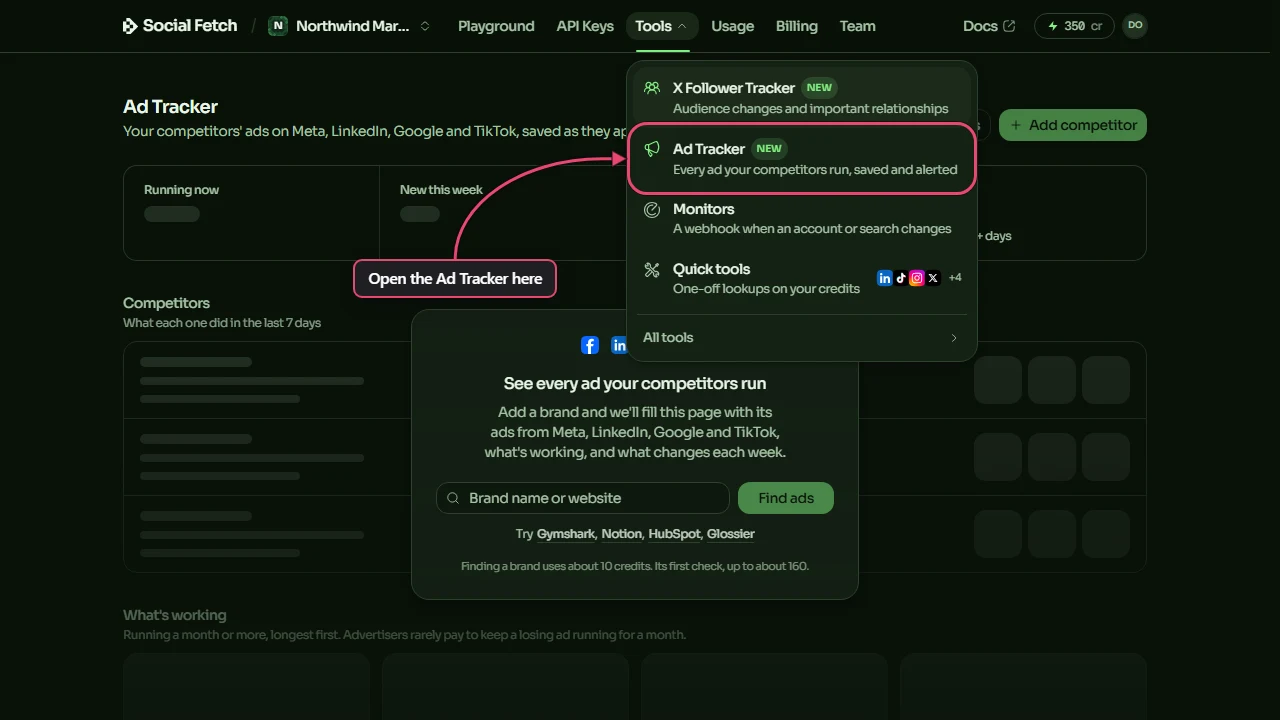
Sign in to the Social Fetch app. In the top menu, open Tools and choose Ad Tracker.
Step 2: Find the brand
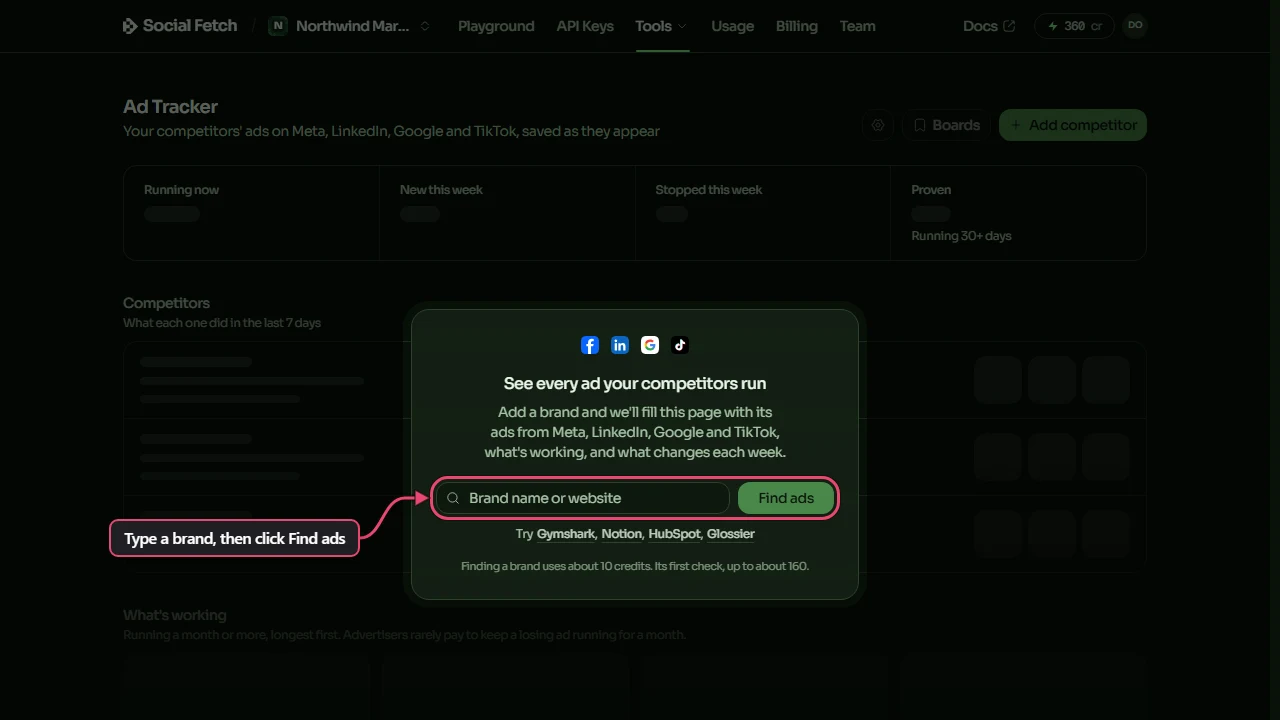
The first time you open the tracker, it shows a faded preview of the dashboard and asks which brand you want to see. Type the brand's name in the box and click Find ads. If you already track other competitors, click Add competitor at the top right instead.
The tracker opens Add a competitor and searches each ad library for the name. This takes a few seconds, and LinkedIn can take up to half a minute. Searching costs about 10 credits; each search after that, with Search again, costs the same.
Type the name the brand advertises under, such as Duolingo. A product name or a misspelling may find someone else's ads.
Step 3: Check the matches
Under Confirm the matches, the tracker shows the account it picked on each library: the brand's Facebook page for Meta, its company page for LinkedIn, its website for Google and its advertiser account for TikTok. Read each one and check it's the brand you meant.
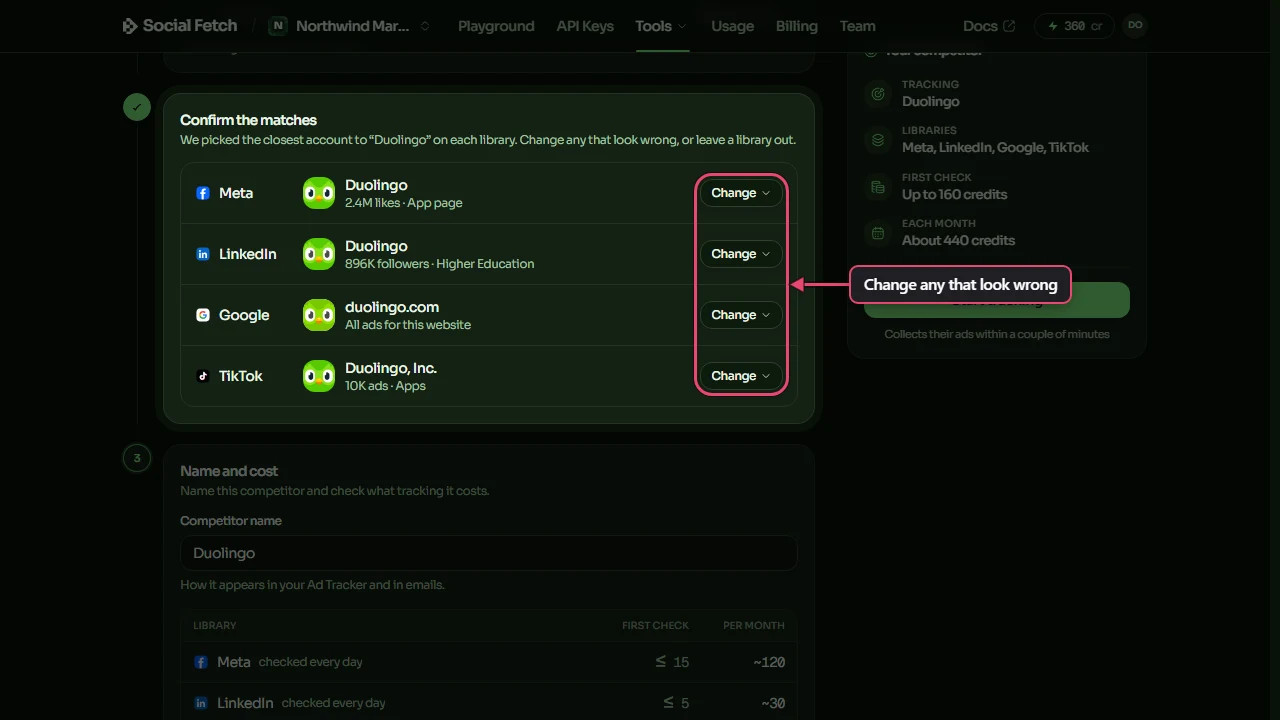
If a match looks wrong, or a library says Not tracking with a Choose button, click the button to see what else the library found:
- Click the right account to use it instead. For TikTok you can tick several, because big brands often advertise from more than one TikTok account.
- If the brand isn't listed, type another name, a handle or the brand's website in Not here? Search and press Enter. A search here costs 1 to 5 credits, as shown under the box. For Google, the box beside it picks the country to search in, which helps when a brand advertises under a local company name.
- To skip a library, choose Don't track at the bottom of the list. You pay nothing for libraries you don't track.
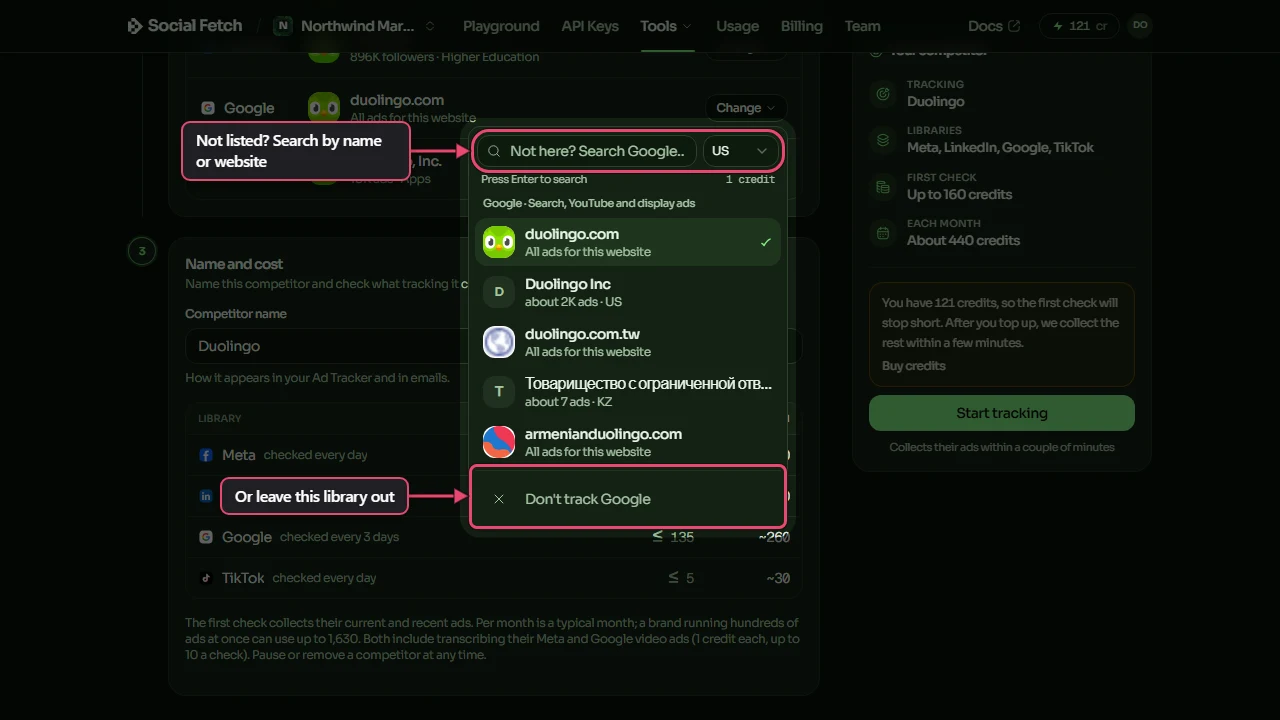
A brand doesn't need to be on every library. If it doesn't advertise on one, leave that library out. In our tests, Babbel's TikTok account had no ads at all, so it was tracked on Meta, LinkedIn and Google only. If you change your mind, you can add a library or swap an account later, from the competitor's page.
Step 4: Name it and check the cost
Under Name and cost, the Competitor name is filled in from the brand's page. It's how the competitor shows in your tracker, in emails and in webhooks. Edit it if you want something different; you can also rename it later from its page.
The table shows each library you're tracking, how often it's checked and what it costs:
- First check is the most the first check can cost. It collects the ads running now and recent ones, so it's the biggest.
- Per month is a typical month of checks after that. A brand running hundreds of ads at once can cost more, up to the figure in the note under the table.
Both include transcribing video ads on Meta and Google, so you can search what's said in them (1 credit each, up to 10 a check on each library).
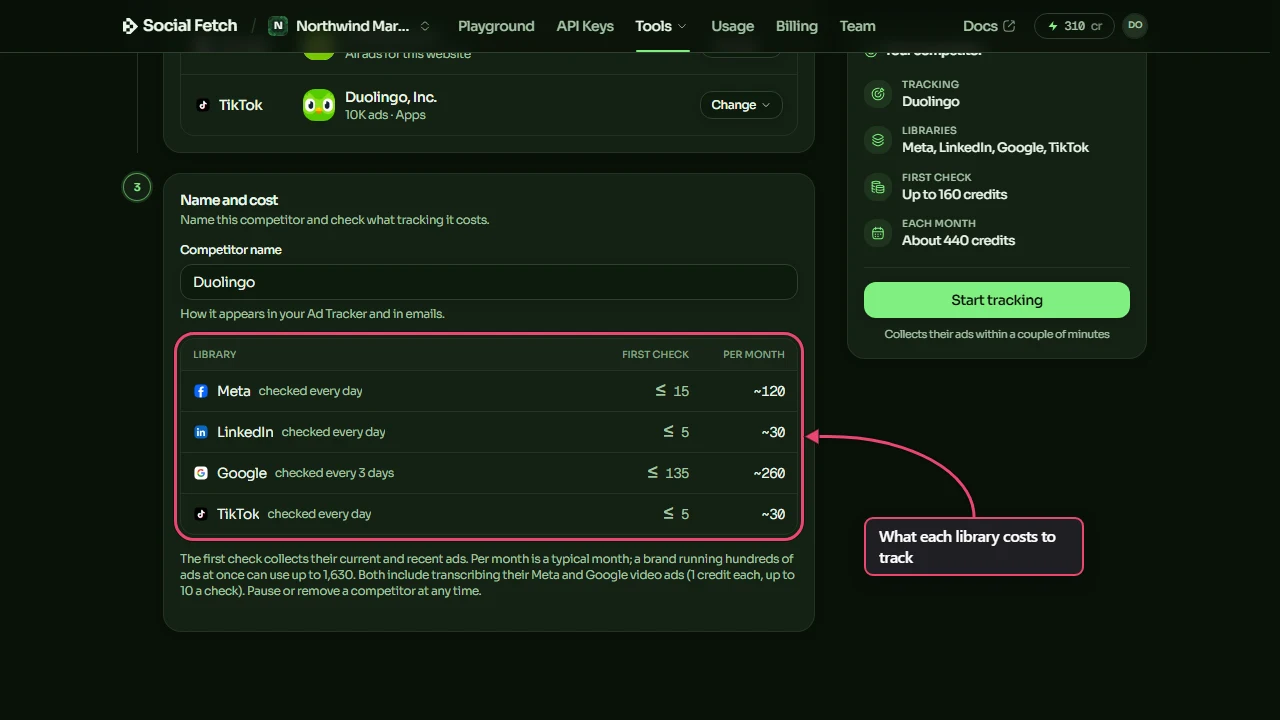
Google is most of the cost: up to 135 credits for its first check, against 25 for the other three together. If you mostly care about social ads, leave Google out.
Step 5: Start tracking
The Your competitor panel on the right adds up the libraries you chose. When you're happy, click Start tracking.
If your balance is lower than the first check, the panel says the first check will stop short. You can still start: the first check keeps the ads it can pay for, and carries on within a few minutes of you adding credits. See When credits run out.
Step 6: Let the first check run
The tracker opens the competitor's page and shows a progress card. Within a few minutes, the first check starts, and each library fills in with the number of ads it found. Most take a minute or two.
After the libraries, the tracker saves a copy of every image and video, and tags each ad with its angle, offer and presenter. The card's title changes to Saving Duolingo's ads, and the status beside the name changes from Collecting to Active, because every library has been collected. For a brand with hundreds of ads, saving the files takes a while; you can browse the ads while it carries on.
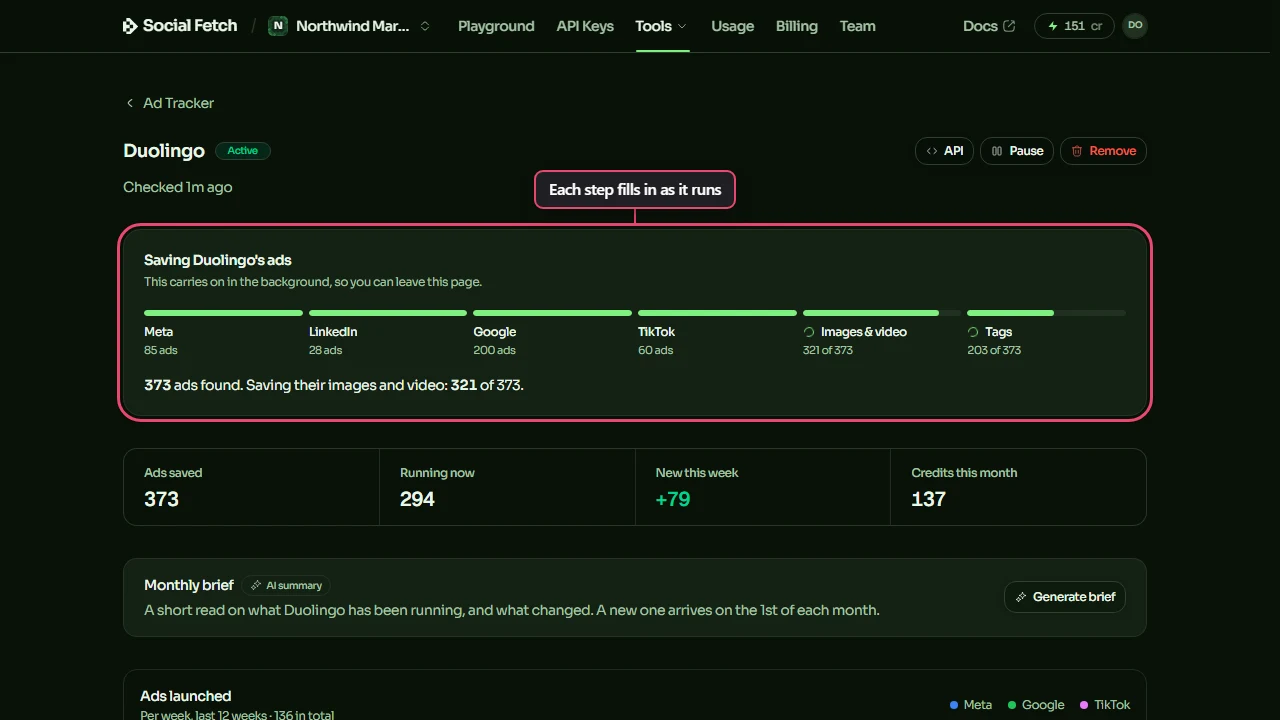
The check runs in the background, so you can close the page and come back later. When every library has finished, you get an email saying the competitor's ads have been collected, unless you've switched off new-ad emails in the tracker's settings.
For Duolingo, the first check found 373 ads and cost 149 credits: 137 for the libraries and 12 for transcribing video ads. A competitor's Credits this month counts both. New this week counts ads that started in the last 7 days, so a new competitor usually has some straight away.
What happens next
From now on, the tracker checks each library on its schedule: Meta, LinkedIn and TikTok every day, Google every three days. You can't check sooner or change the schedule. New ads appear on the dashboard as they're found, and you get an email when the competitor launches some. Add a couple of competitors and the dashboard shows what each of them did this week.
Ad Tracker
Track a competitor's ads on Meta, LinkedIn, Google and TikTok in the Social Fetch app: every ad saved with its images and video, what's new each week, what they've run for a month or more, and alerts. No code needed.
Read your results
How to read the Ad Tracker: the dashboard's weekly numbers, proven ads, the ad feed and its filters, a competitor's page and monthly brief, and each ad's run dates, files and tags.