Save and share ads on boards
Keep the competitor ads worth learning from on Ad Tracker boards, add notes on why each one works, and share a board with a client or your team by link.
A board is a collection of ads you've picked out, sometimes called a swipe file: the hooks worth borrowing, every competitor's Black Friday offers, or the ads to show a client. Boards are free; saving, noting and sharing ads doesn't use credits.
Save an ad
- Find an ad on the dashboard, a competitor's page or a board, and hover over its picture. Click the bookmark that appears in the top-left corner. On an ad's own page, click Save at the top right.
- The first time you save an ad, the tracker makes a board called Saved and puts the ad on it.
- Tick the boards you want the ad on, or click New board, type a name and click Create.
- Optionally, type in Note why it's worth keeping and click Save note.
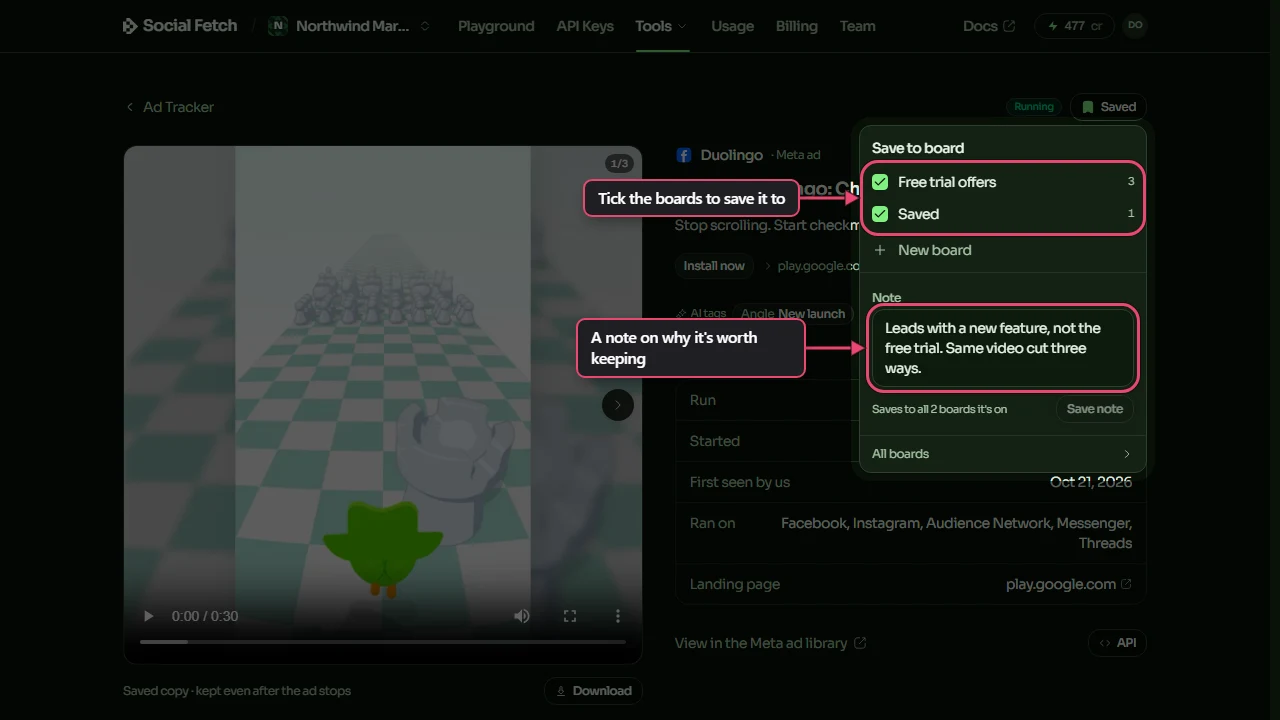
A note belongs to the ad, so it shows on every board the ad is on. Only people in your workspace see notes.
See your boards
Click Boards at the top of the Ad Tracker. Each board shows a few of its ads, its name and how many ads it has. Click New board to make one before you save anything to it; give it a Name and, if you like, a Description of what the ads have in common.
On a board, each ad has its note underneath. Click Add a note, or the note, to write or change it. To take an ad off the board, click the bin icon beside its note; Undo puts it back.
The ⋯ button at the top of a board has Rename and Delete board. Deleting a board deletes its notes and its share link, but the ads stay in your tracker.
Share a board
Share a board with a client, a colleague or anyone else, without them needing an account.
- Open the board and click Share.
- Switch on Share by link.
- Click Copy and send the link.
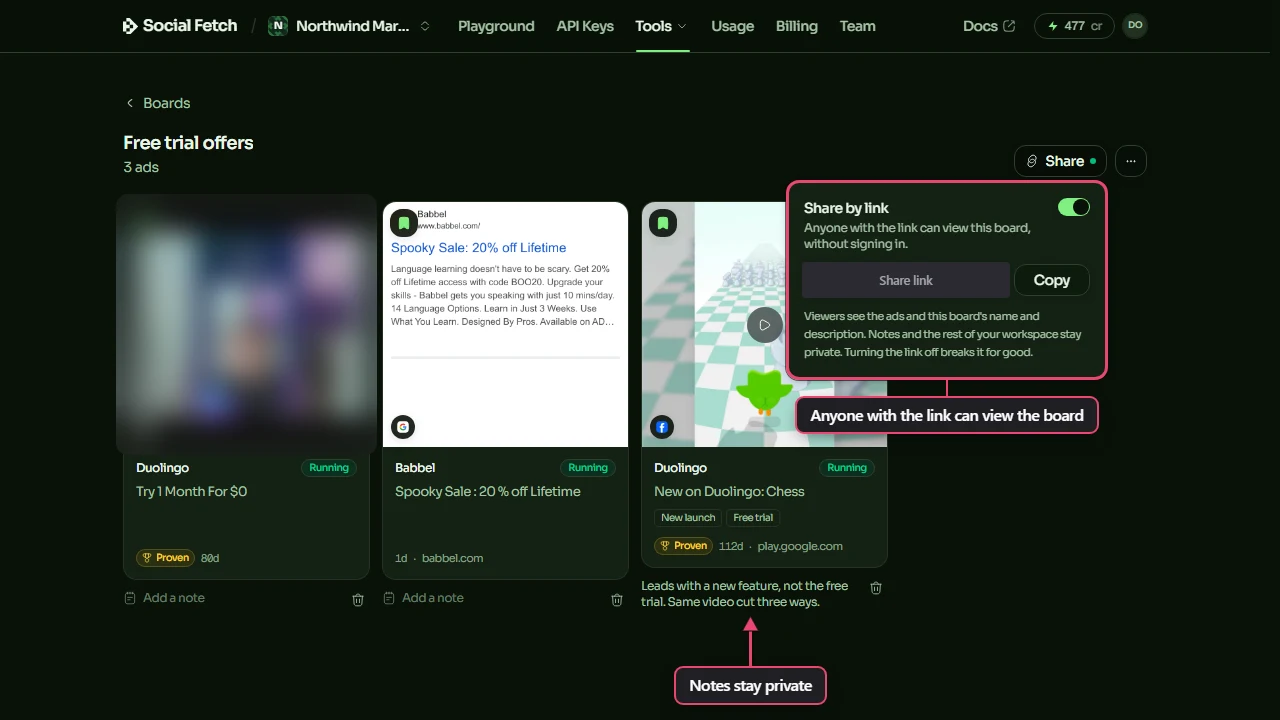
People who open the link see the board's name and description and its ads, and can click an ad to read its copy, see how long it ran and open it in its library. They don't see your notes, your other boards or anything else in your workspace. A green dot on Share shows that the link is on.
Turning the link off is for good
Switching Share by link off breaks the link permanently, for everyone who has it. If you share the board again, it gets a new link, which you'll need to send again.
Who sees what
Boards belong to your workspace. Owners and admins see every board; members see the boards they made. Only the person who made a board, or an owner or admin, can rename, share or delete it.
If you remove a competitor, its ads leave your boards too.
Read your results
How to read the Ad Tracker: the dashboard's weekly numbers, proven ads, the ad feed and its filters, a competitor's page and monthly brief, and each ad's run dates, files and tags.
Costs and limits
What the Ad Tracker spends credits on, each library's cost, how to read the estimates, how to spend less, and what happens when your credits run out.