Read your Ad Tracker results
How to read the Ad Tracker: the dashboard's weekly numbers, proven ads, the ad feed and its filters, a competitor's page and monthly brief, and each ad's run dates, files and tags.
The Ad Tracker has three levels: the dashboard, with every competitor together; a competitor's page; and an ad's page. This guide goes through each, then explains how the tracker decides an ad is new, stopped or proven.
The dashboard
Open Tools, then Ad Tracker. The four numbers at the top add up every competitor you track:
- Running now: ads still being shown.
- New this week: ads that started in the last 7 days, by the start date the library gives.
- Stopped this week: ads that stopped in the last 7 days while the tracker was watching. Ads that had already stopped before you started tracking don't count, so this is 0 at first.
- Proven: ads still running that have run for 30 days or more.
Below them, Competitors has a row for each brand, with its status, the libraries it's tracked on and when it was last checked. The middle of each row says what it did in the last 7 days, such as Launched 78 new ads, 40 on Meta, Stopped 3 ads or Started advertising in Brazil and Mexico. In a quiet week it says how many ads are still running. Competitors with news come first, and the pictures on the right are their newest ads.
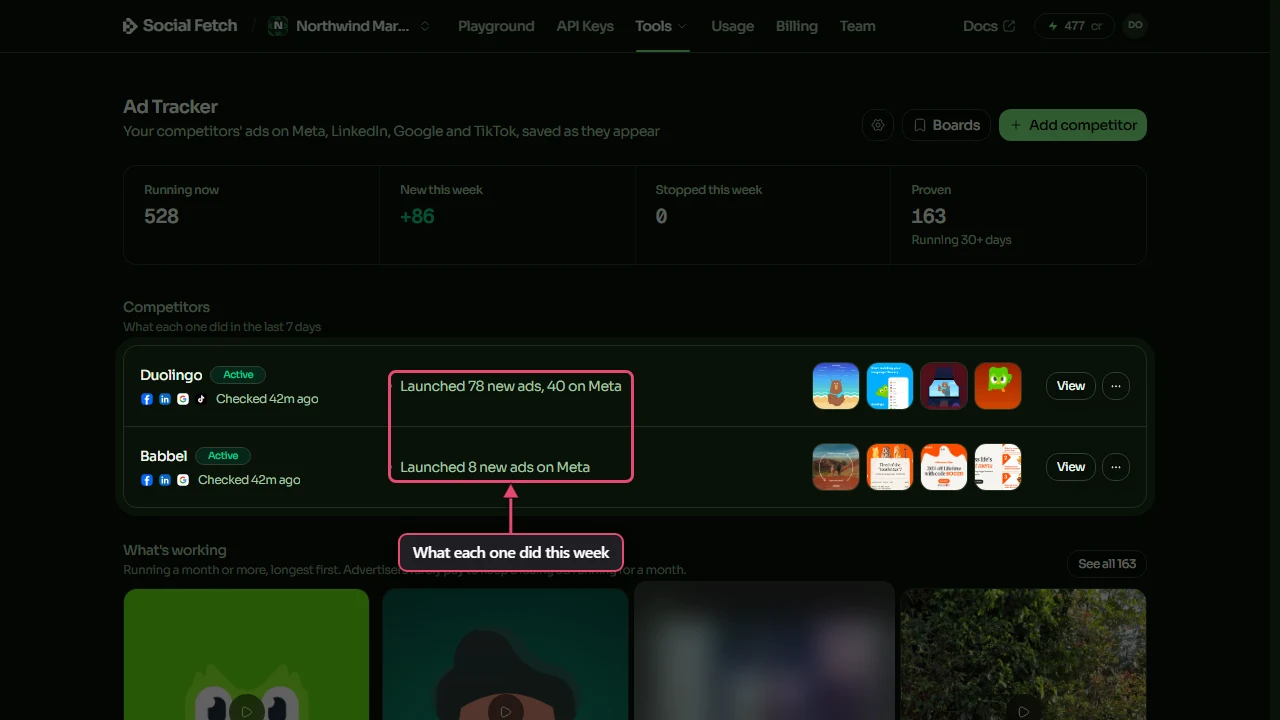
Click a competitor's name or View to open its page. The ⋯ button at the end of a row has Pause tracking and Remove.
What's working
What's working shows a few of the longest-running live ads from each library, with the Proven mark. Click See all to show every proven ad that's still running in the feed below, longest first.
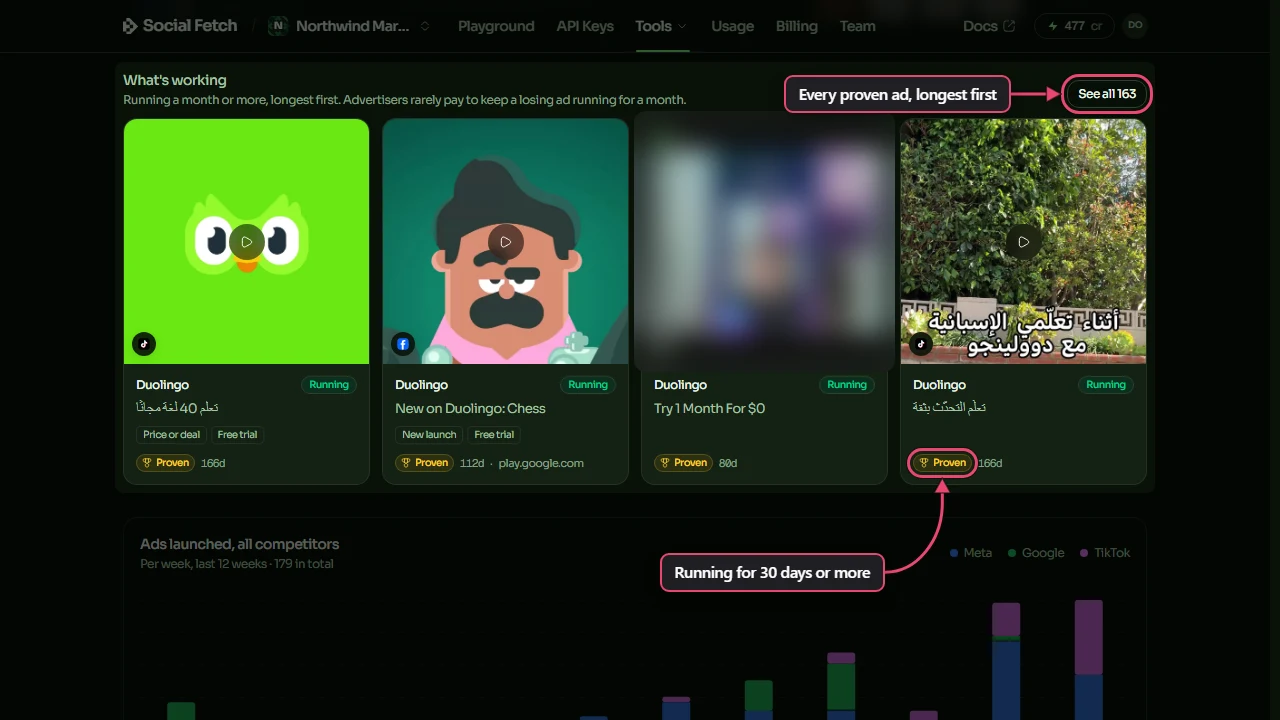
A proven ad isn't guaranteed to be a winner, but advertisers rarely keep paying for an ad that loses money for a month. The libraries don't publish results, so how long an ad has run is the closest signal they give.
Ads launched, all competitors charts how many ads started each week over the last 12 weeks, coloured by library. A tall bar is a week they started many ads.
All ads
All ads is every ad the tracker has saved. Use the buttons above it to narrow it down:
- All, Running or Stopped.
- A library: Meta, LinkedIn, Google or TikTok (shown when you track more than one).
- Proven, for ads that have run 30 days or more.
- Tags, to filter by the angle, offer or presenter the AI tagged each ad with. It appears once ads have been tagged.
- Search ad copy searches the headline, the text, the call to action, the advertiser's name and what's said in video ads.
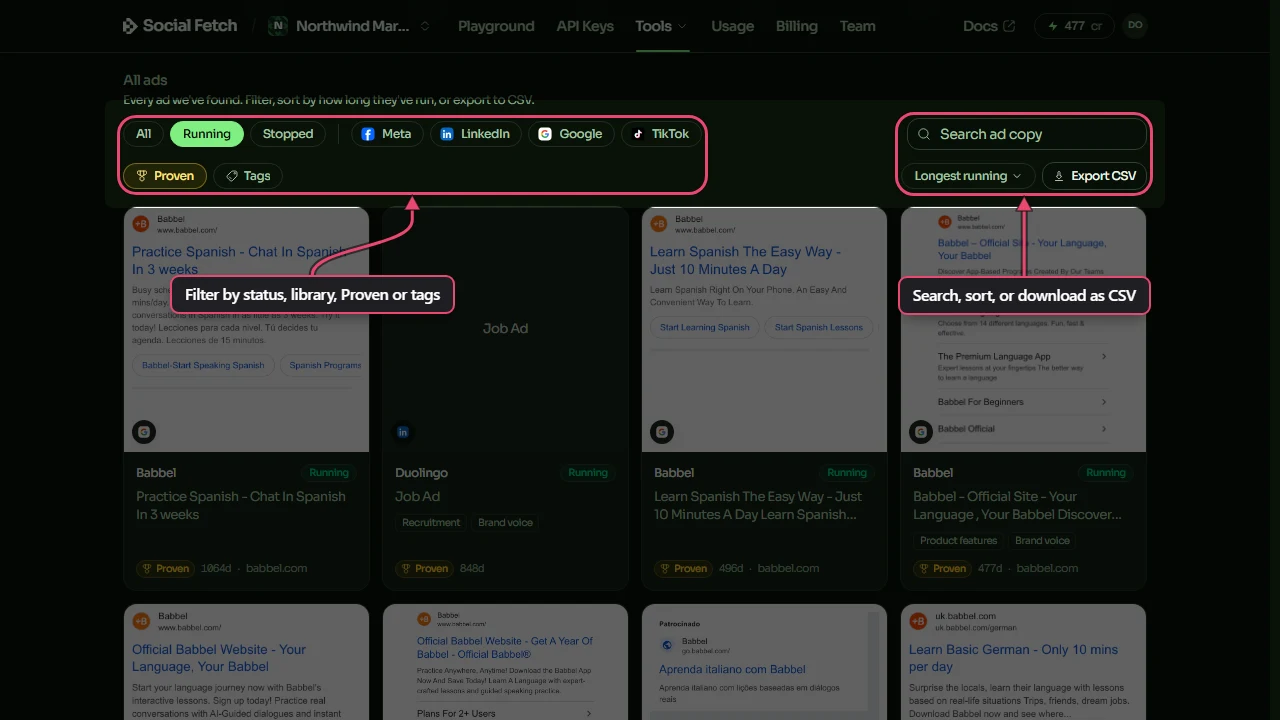
The sort menu has Newest first and Longest running. Newest first goes by when each ad started running: the start date the library gives, or, when it gives none, when the tracker found the ad. Export CSV downloads the ads you're looking at; see Alerts and exports.
Each card shows the ad's picture, its library, whether it's Running or Stopped, its copy, up to two tags and how many days it has run (34d). ×3 means the same creative runs as three separate ads, shown once.
A competitor's page
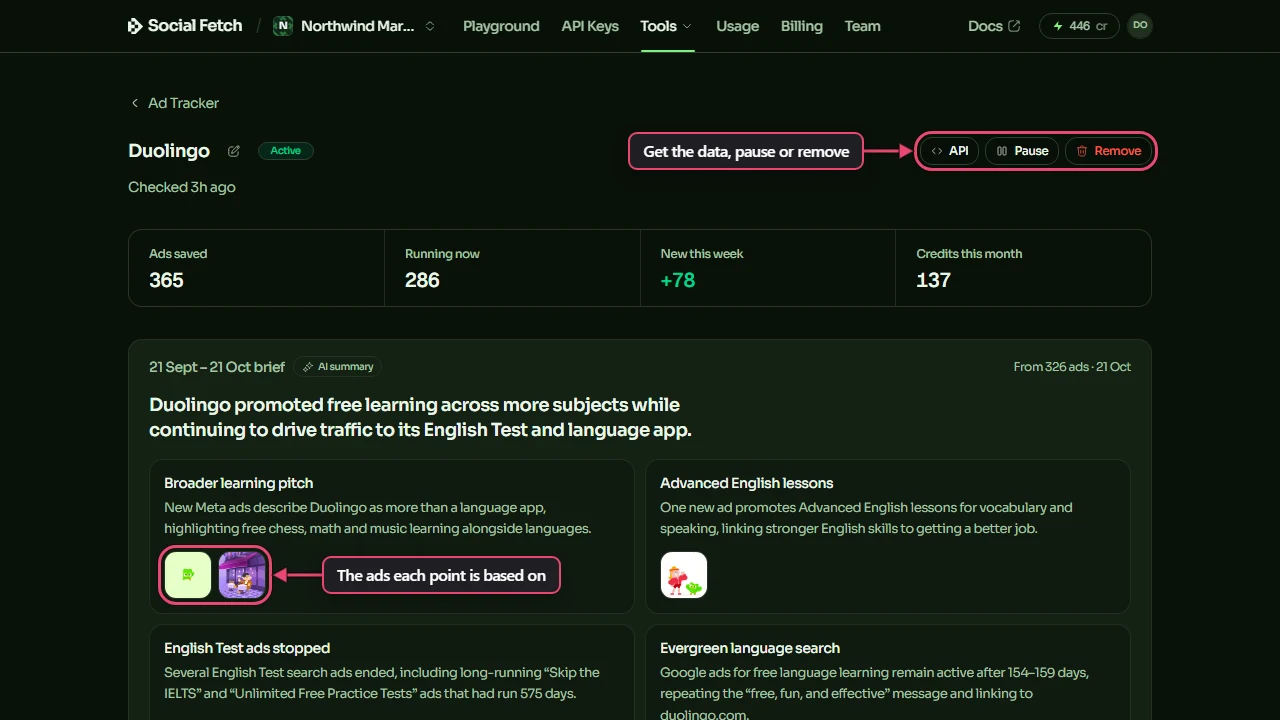
A competitor's page shows the same kind of results for that brand alone. The pencil beside its name renames it; the new name shows in emails and webhooks too. At the top right are API, which shows the API call behind the tracker (Alerts and exports), Pause and Remove. The numbers below them are Ads saved, Running now, New this week and Credits this month, which is what this competitor's checks and video transcripts have used since the 1st of the month.
The monthly brief
On the 1st of each month, AI reads the competitor's ads from the past month and writes a short brief: a headline and a few points about what they're running and what changed. Each point shows the ads it's based on; click one to check the point against the ad itself. The brief can miss things or get them wrong, so check anything important against the ads.
A new competitor doesn't have to wait for the 1st. Once it has at least 5 ads from the last 30 days, click Generate brief to get one straight away. Briefs don't use credits.
Libraries and landing pages
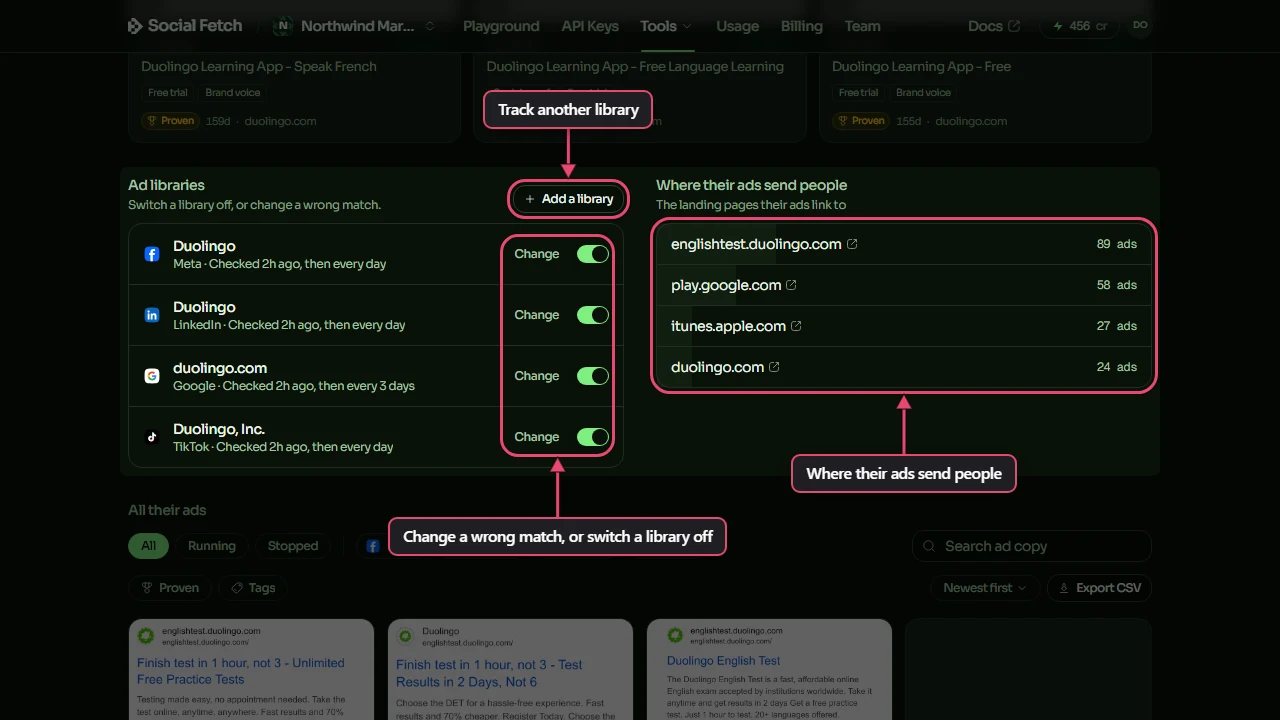
Further down, Ad libraries lists the account tracked on each library and when it was last checked. From here you can:
- Switch a library off to stop checking it and stop paying for it. Its saved ads stay.
- Click Add a library to track the brand on a library you left out, or another of its TikTok accounts.
- Click Change on a row to swap an account that's the wrong match.
Where their ads send people lists the websites their ads link to and how many ads point to each.
Add a library or change an account
Add a library and Change open the same window:
- For Add a library, pick the library. It offers the ones the competitor isn't tracked on yet, and TikTok, where a brand can have several accounts.
- The search box starts with the competitor's name. Click Search, or try its website, another name or a handle first. Searching costs the same as searching one library while setting up, shown under the box.
- Click the right account. Accounts already tracked are marked Tracking.
- Check the cost under the list, then click Start tracking (or Use this account when changing one).
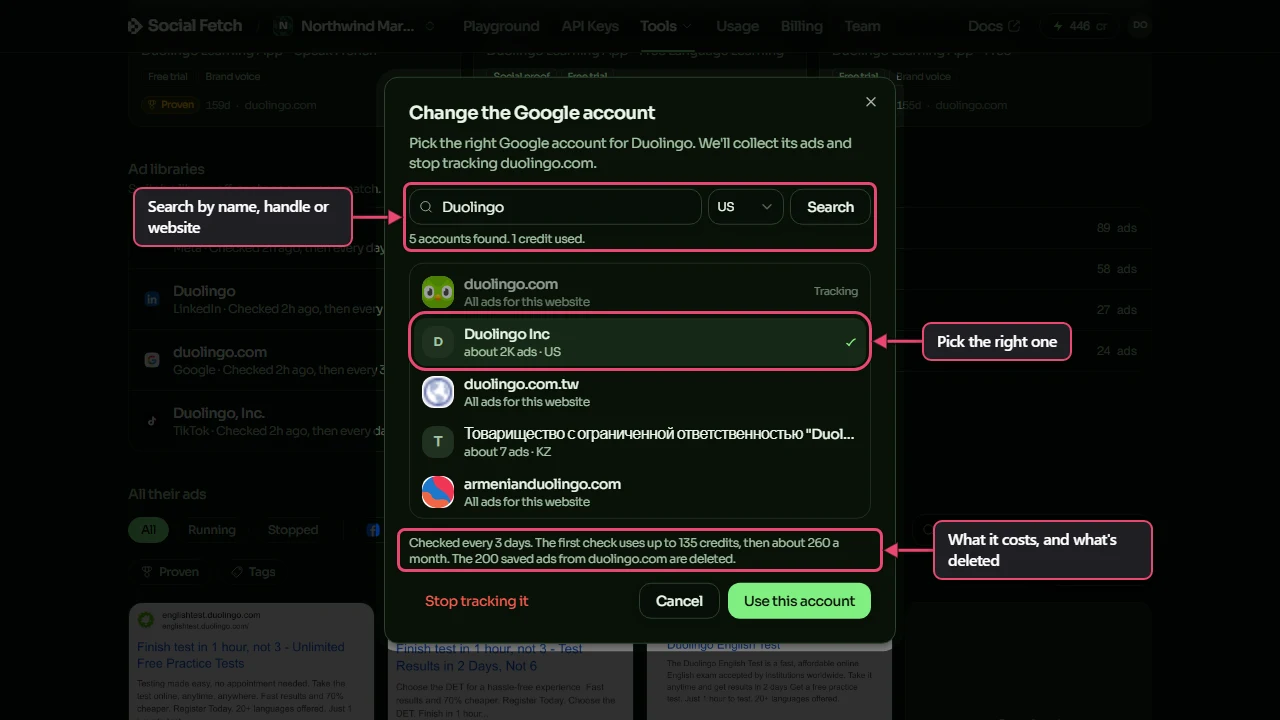
The new account's first check starts within a few minutes and costs the same as a first check when you add a competitor. Changing an account deletes the old account's saved ads and files, including from your boards. To stop tracking an account without replacing it, such as an extra TikTok account, click Change, then Stop tracking it. A competitor keeps at least one account; to stop tracking it altogether, pause or remove it.
Longest-running ads, the launch chart and All their ads work like the ones on the dashboard.
An ad's page
Click any ad to open its page. On the left is the ad's picture or video. Saved copy under it means the tracker has stored the file, so it stays even after the ad stops or the library deletes it. Click Download to save it. An ad with several files has arrows to step through them.
On the right are the ad's advertiser, headline, text and call to action, then its AI tags: the Angle (such as New launch or Social proof), the Offer (such as Free trial) and the Presenter (such as Brand voice or Creator (UGC)). Video ads on Meta and Google also have a Transcript of what's said, transcribed automatically, so some words can be wrong.
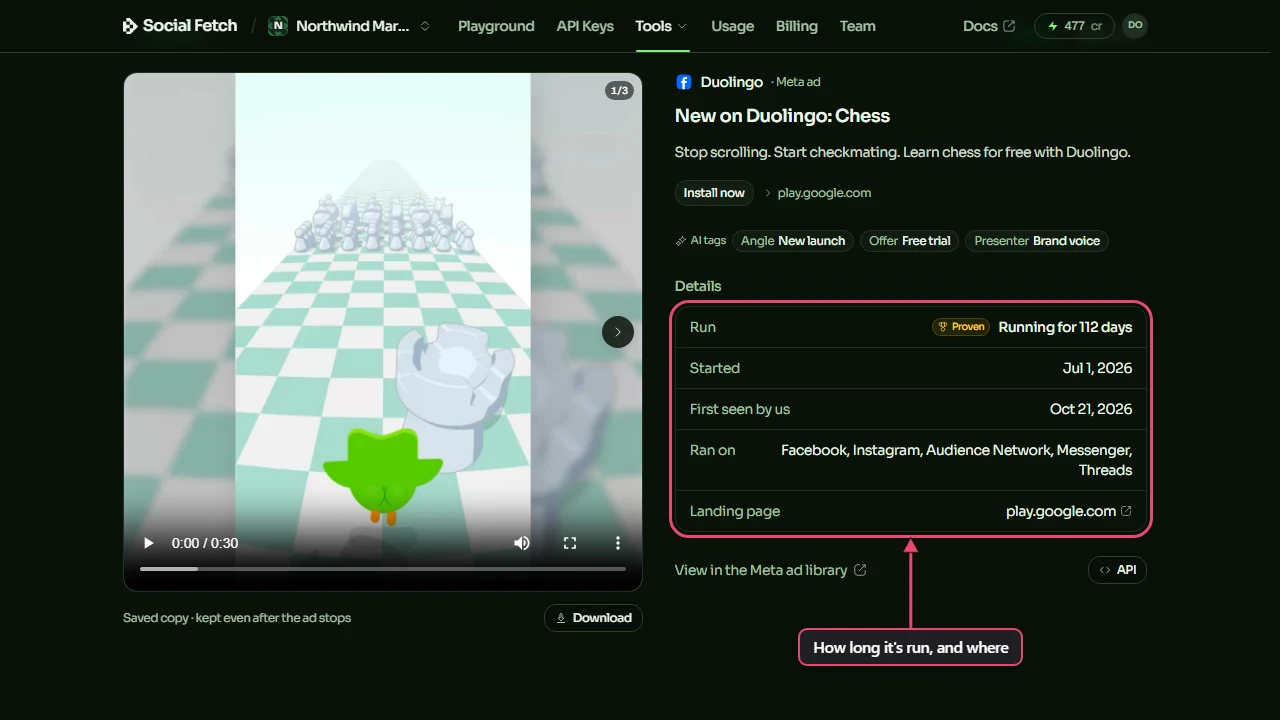
Details lists:
- Run: how long it has run, or ran, and the Proven mark.
- Started: the date the library gives. Stopped appears once it has stopped.
- First seen by us: when the tracker found it. For ads from the first check, that's the day you started tracking.
- Ran on, Impressions and Countries, when the library shares them. Impressions are the library's rough range, not an exact count.
- Landing page: where the ad sends people.
View in the Meta ad library (or LinkedIn, Google, TikTok) opens the ad in the library itself. Save puts it on a board; see Save and share ads.
How the tracker decides
New
New this week and the launch charts count ads by the start date the library gives, whenever the tracker found them, so a new competitor's chart already shows the weeks before you added it. Emails and webhooks only announce launches: ads that started within a week of a check finding them, after the first check. An older ad the tracker has only just come across is saved, and shows in the chart under the week it started, but isn't announced.
Running and stopped
Meta says directly whether an ad is still active. Google, LinkedIn and TikTok give the last day an ad was shown, and the tracker marks it Stopped once that's more than three days ago. An ad the tracker hasn't seen for 30 days is marked stopped too, dated to when it was last seen. If a stopped ad comes back, it's marked Running again.
Proven
An ad is Proven once it has run for 30 days, counted from the start date the library gives (or from when the tracker first saw it, when there's none). An ad that ran for a month and then stopped stays proven.
A competitor's status
| Status | What it means |
|---|---|
| Collecting | The first check is still running on at least one library. |
| Active | Every library has been collected, and checks are running on schedule. |
| Needs credits | The workspace ran out of credits during a library's latest check, so it couldn't finish. Add credits and it checks again within a few minutes. See When credits run out. |
| Paused | You paused it. No checks run and no credits are spent. |
| Needs attention | A library's last check failed, or every library is switched off. Hover over the status to see which. |
Track your first competitor
A step-by-step guide to tracking a competitor with the Social Fetch Ad Tracker: find the brand, check its ad library accounts, see the cost and start collecting its ads.
Save and share ads
Keep the competitor ads worth learning from on Ad Tracker boards, add notes on why each one works, and share a board with a client or your team by link.