Ad Tracker alerts and exports
Get an email when a competitor launches new ads and a weekly digest, send tracker events to Slack, Zapier, Make or your own code with webhooks, download ads as CSV, and get the same data through the API.
The Ad Tracker can email you when competitors launch ads, send the same news to other tools, and give you the ads as a spreadsheet or through the API.
Email alerts
To choose your emails, click the gear button (Alerts and webhooks) at the top right of the Ad Tracker, next to Boards. Email alerts has three settings, and they apply to the whole workspace's tracker. Changes save as you make them.
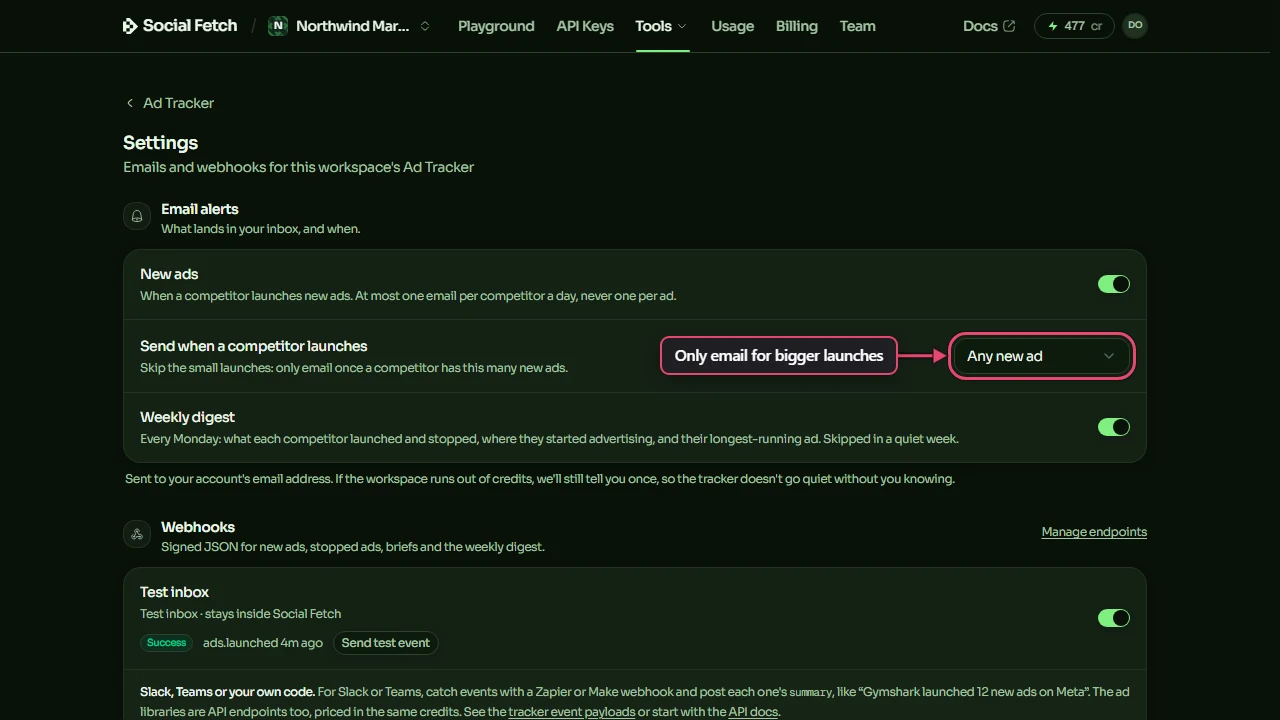
| Setting | What you get |
|---|---|
| New ads | An email when a competitor launches new ads, with a few of them and a link to the rest. At most one email per competitor a day, never one per ad. On to start. |
| Send when a competitor launches | Holds the new-ads email until a competitor has launched this many: Any new ad, or 3, 5, 10 or 25 or more new ads. Use a higher number for brands that launch a few ads every day. |
| Weekly digest | An email every Monday with what each competitor launched and stopped, where they started advertising, and their longest-running ad. It's skipped in a week when nothing happened. On to start. |
New-ad emails only count launches: ads that started within a week of being found. With New ads on, you also get one email when a new competitor's first check has finished, whatever the minimum.
In a personal workspace, emails go to your account's address. In a shared workspace, each competitor's emails go to the person who added it, or to the workspace owners if that person has left. To share alerts with colleagues or a client, send them to a team channel with a webhook (below). Only owners and admins can change these settings; other roles can see them.
Whatever your settings, if the workspace runs out of credits, the tracker sends one email to say so (at most once every three days). See When credits run out.
Webhooks
Webhooks are optional, and mainly for people who use Zapier, Make or their own code. A webhook sends each tracker event to a web address you choose, as a small data file (signed JSON) the receiving tool reads. With a Zapier or Make "catch hook" (a web address that starts a Zap or scenario), you can post each event to Slack, Teams or a spreadsheet without code. Webhooks don't follow the email settings: every check that finds a launch or a stop sends an event.
- Create a webhook endpoint. On the settings page, under Webhooks, click Create an endpoint (or Manage endpoints), then add your URL. To try it first, choose Test inbox, which shows deliveries inside Social Fetch.
- Go back to the Ad Tracker's settings (Tools, Ad Tracker, then the gear button) and switch on the endpoint.
- Click Send test event. Test event delivered. means it arrived.
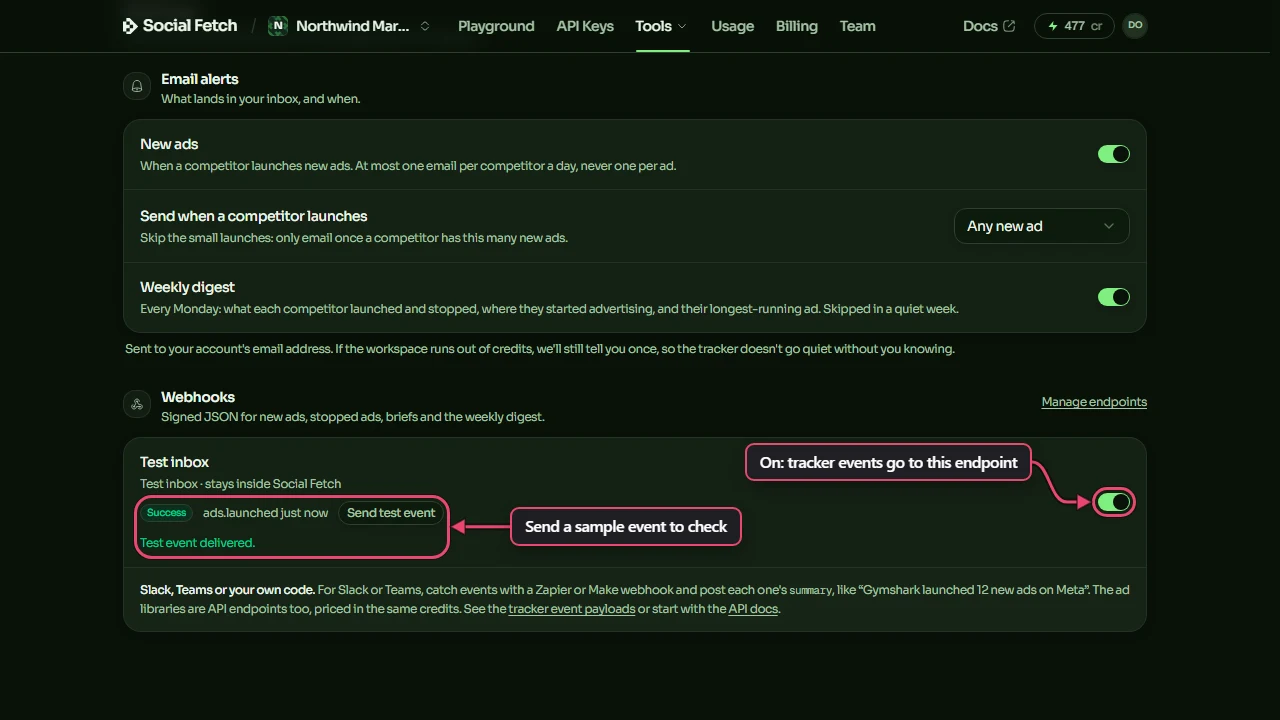
There are four events: new ads launched, ads stopped, a monthly brief written, and the weekly digest. Each one has a plain-English summary, such as Duolingo launched 12 new ads on Meta, which is what to post to Slack. Ad Tracker events has the payloads and a Slack recipe.
Export to CSV
To download ads as a CSV file, which opens in Excel, Google Sheets or Numbers, go to All ads on the dashboard or All their ads on a competitor's page, set the filters you want, and click Export CSV. The file has the ads you're looking at, in the same order, up to 5,000. If there are more, it says so; narrow the filters and export again.
Each row is one ad, with these columns: Competitor, Library, Status, Format, Headline, Body, CTA, Landing page, Started, Stopped, Run days, Proven, Tags and Library URL.
To keep an ad's image or video, open the ad and click Download under it. There's no download of every file at once.
Use the API
Everything the tracker collects comes from Social Fetch API endpoints, at the same prices. On a competitor's page or an ad's page, click API to see the exact call the tracker makes, in cURL, Node.js, Python or the TypeScript SDK, ready to copy. Try it in the playground runs it in the app; like any lookup, that spends credits. Use it to put the same data in your own dashboard, spreadsheet or AI agent.
Costs and limits
What the Ad Tracker spends credits on, each library's cost, how to read the estimates, how to spend less, and what happens when your credits run out.
Use cases
Ways to use the Ad Tracker: build a swipe file of proven ads, watch competitors' offers and launches, report to clients, spot new markets and landing pages, and feed the ads into your own tools.